
Home Security
How to Know If Your Home Wi-Fi Is Hacked in 2026: 12 Warning Signs Every Miami Homeowner Should Watch For
Worried your home Wi-Fi is hacked? Learn the 12 clearest warning signs a hacker is on your network in 2026 — from mystery devices and slow speeds to DNS changes and rogue smart-home traffic — plus a step-by-step Miami homeowner's playbook to kick them off and lock your router down for good.
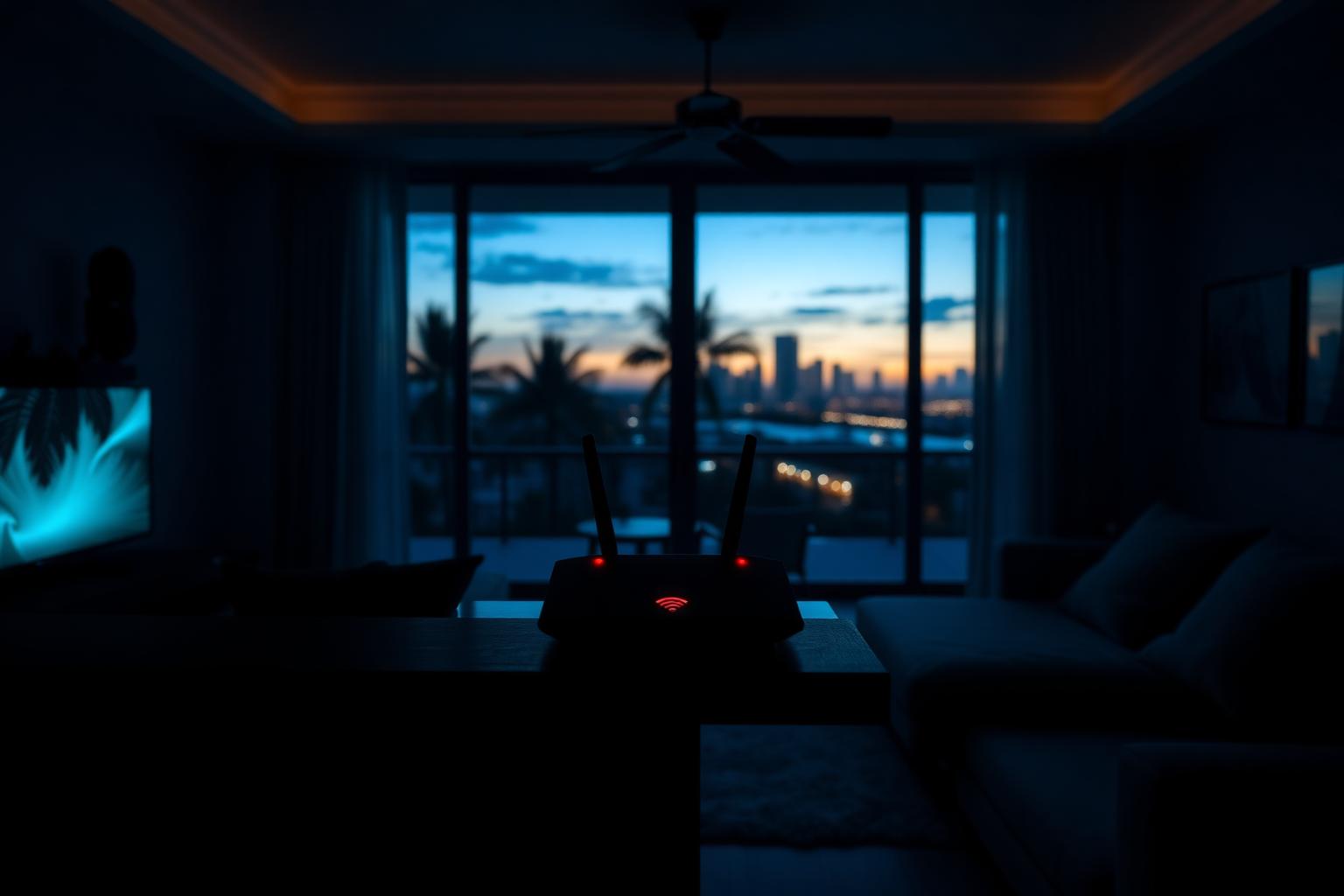
Your home router is the single most important — and single most ignored — piece of security equipment you own. Every phone, laptop, work computer, Ring doorbell, Nest thermostat, smart TV, gaming console, and kid's tablet in your house talks to the internet through it. When a hacker takes over that router, they don't just "steal your Wi-Fi." They can watch which sites you visit, redirect your banking login to a fake page, silently install malware updates on every device on your network, and pivot into your cameras, locks and alarm system.
The good news: a compromised home network almost always leaves clues. If you know what to look for, you can catch an attacker early, evict them, and lock the router down before real damage is done. This 2026 Miami homeowner's guide from the Cybrvault team walks through the 12 clearest warning signs your home Wi-Fi is hacked, the Miami-specific risks that make it more common here than in most of the country, and the exact step-by-step playbook to fix it — most of it in under an hour, at zero cost.
For deeper defensive steps, pair this guide with How to secure your home Wi-Fi in Miami and Free home security tools every homeowner should use in 2026.
Why Miami homes are prime targets for Wi-Fi attacks in 2026
Miami homes get attacked for reasons that have nothing to do with wealth. Dense condo towers in Brickell, Downtown, Edgewater and Sunny Isles put dozens of Wi-Fi networks within physical range of each other — an attacker in the next unit can attack yours with nothing but a laptop. Hurricane-season power cycles knock out routers, and many homeowners plug them back in without checking whether firmware, DNS and admin passwords are still where they should be. Short-term rentals across South Beach, Wynwood and Coconut Grove leave old guest passwords, port-forwarding rules and even installed malware between tenants. And South Florida's constant flow of international travel and business means more traffic in and out of the region — and more automated scanning of local IP ranges.
You don't have to be a business, a celebrity, or a whale to end up on a scanner's target list. Most home Wi-Fi compromises in 2026 are opportunistic: an unpatched router firmware, a default admin password, or an old WPS PIN is all it takes.
12 warning signs your home Wi-Fi is hacked
1. Unknown devices on your network
This is the single clearest sign. Every modern router has a page — usually called "Attached Devices," "Client List," "Devices" or "LAN Devices" — that lists everything currently connected. Log in to your router (see the step-by-step below) and go through the list one device at a time. Every phone, laptop, tablet, TV, printer, thermostat, camera and speaker in your house should be accounted for. Anything you can't match to a person or a device you own is a red flag.
Attackers often name their devices things like "android-xxxx," "iPhone," "ESP-32," a random MAC-based string, or nothing at all. If the list shows 3 more devices than you can count in the house, treat it as compromise until proven otherwise.
2. Sudden, unexplained slow internet
If your speed test used to hit your plan's advertised rate and now consistently comes in at a fraction of that — with no new streaming devices, no roommate move-in, and no ISP outage in your Miami neighborhood — someone else may be riding your connection. Torrents, crypto mining, camera streaming, and just plain heavy use by a neighbor can eat huge amounts of bandwidth.
3. Wi-Fi keeps kicking you off
Random disconnections, devices that show "connected — no internet," or a Wi-Fi network that briefly disappears and reappears can indicate deauthentication attacks — a common technique used to force devices off the network so an attacker can capture the reconnection handshake and try to crack the Wi-Fi password offline.
4. Router lights blink constantly, even when everyone is asleep
At 3am, with every phone on Do Not Disturb and every TV off, your router's WAN and Wi-Fi activity LEDs should be nearly quiet. Fast, sustained blinking in the middle of the night — night after night — usually means something on your network is actively transmitting. That something could be a smart doorbell doing a normal cloud upload, or it could be a compromised device beaconing out to a command-and-control server.
5. Browser redirects and weird pop-ups on every device
If Chrome, Safari and Edge on multiple devices all suddenly redirect to fake "Your router is infected" pages, sketchy search engines, adult sites or gambling ads — and the problem follows the network, not the device — the router itself is likely compromised. Router-level DNS hijacking is one of the most common outcomes of a home network takeover.
6. Your router's admin password no longer works
If you know your admin password and it suddenly stops working, someone else has changed it. The same goes for finding a new admin account in the user list that you didn't create. Do not assume you "just forgot" — factory-reset the router (see the playbook below) and treat the network as fully compromised.
7. Your DNS settings changed
Log in to your router and check the DNS settings under Internet or WAN. On a clean network, these are usually blank (using your ISP's DNS), or set to a service you chose (Cloudflare 1.1.1.1, Google 8.8.8.8, Quad9 9.9.9.9, NextDNS, etc.). If you see unfamiliar DNS servers you didn't set — especially strange foreign IPs — an attacker is silently routing every website lookup in your home through their own servers, which is how banking and email credentials get stolen at scale.
8. Firmware auto-update is disabled or firmware is years out of date
In many router compromises, one of the first things an attacker does is turn off automatic firmware updates so their foothold doesn't get patched away. Check your router's firmware version and update settings. If auto-update is off and you didn't turn it off, or if the firmware is more than 12 months behind the manufacturer's latest release, take that as a serious warning.
9. Port-forwarding rules you didn't create
Look under "Port Forwarding," "Virtual Servers," "NAT" or "Firewall" for rules that open a specific port to a specific internal device. On most home networks, this list should be empty (or contain only a rule you set for gaming, a specific camera, or remote access). Unfamiliar rules — especially ones pointing to your PC, NVR or a random internal IP — often mean an attacker built themselves a permanent back door in.
10. Smart-home devices acting on their own
Lights turning on when nobody's home. A Ring or Nest camera that pans without input. A thermostat that jumps 10 degrees. A smart lock that unlocks by itself. Once a hacker owns the network, every unencrypted or weakly-authenticated IoT device on it becomes theirs too. Treat any unexplained smart-home behavior as network-level, not device-level.
11. Security cameras logging strange login attempts
Check the account activity for Ring, Nest, eufy, Arlo, Reolink or Wyze. Repeated failed logins, successful logins from an unfamiliar city or IP, or new "shared users" you didn't add mean either the account or the network is compromised. Cameras are often the first target because they give the attacker real-time video of your home.
12. Your antivirus or ISP warns you about your router
Modern antivirus suites (Bitdefender, Norton, Malwarebytes, Avast) and some ISPs actively scan the local network and warn you if your router responds to known exploits, has UPnP misconfigured, exposes admin ports to the internet, or matches known compromise signatures. If you see a warning like "router vulnerable" or "suspicious device on network," don't dismiss it — it's usually right.
How to check if your home Wi-Fi is hacked (step-by-step)
- 1Find your router's admin address. Most Miami-area home routers use 192.168.0.1, 192.168.1.1, 10.0.0.1, or a custom URL printed on the router itself (routerlogin.net for Netgear, tplinkwifi.net for TP-Link, orbilogin.com for Orbi).
- 2Open that address in a browser and sign in. If the default admin credentials on the sticker still work, that alone is a serious risk — attackers try defaults first.
- 3Open the Attached Devices / Client List page and identify every device. Anything you can't identify is suspect.
- 4Check the Wireless page: confirm security is set to WPA3, or WPA2-AES if WPA3 isn't supported. TKIP, WEP or "Open" are broken and should never be used in 2026.
- 5Check the Admin, DNS, Port Forwarding, UPnP, WPS and Remote Management pages. Note anything unexpected.
- 6Check the firmware version and confirm it's the latest available from the manufacturer's website.
- 7Run a speed test at fast.com or speedtest.net at a time when nothing in the house is streaming. Compare to your plan's advertised speed.
- 8On a laptop, run a free network scan with Fing, Nmap (nmap -sn 192.168.1.0/24) or Bitdefender Home Scanner to double-check the device list from a second angle.
How to kick a hacker off your Wi-Fi and lock the router down
If you're seeing any of the signs above, don't just change the Wi-Fi password and hope for the best. Work through the full playbook — anything less usually leaves a back door open.
- 1Factory-reset the router (hold the reset pin for ~30 seconds). This wipes any hidden admin accounts, DNS changes, port-forwarding rules and firmware-level implants attackers might have left behind.
- 2Immediately update to the latest firmware from the manufacturer's website — before you plug in any client devices.
- 3Set a new, long admin password (16+ characters, unique to this router) and store it in a password manager (1Password, Bitwarden, iCloud Keychain).
- 4Set a new, long Wi-Fi password (16+ characters). Do not reuse the old one.
- 5Set encryption to WPA3-Personal (or WPA2-AES if WPA3 isn't supported). Never use WEP, TKIP or "mixed" modes with WEP.
- 6Disable WPS entirely. The 8-digit PIN is trivially crackable and is a leading cause of home Wi-Fi compromise.
- 7Disable UPnP unless a specific device (game console, VoIP phone) truly needs it.
- 8Disable Remote Management / Remote Admin so the router's login page is not exposed to the public internet.
- 9Set DNS to a trusted service — Cloudflare 1.1.1.1, Quad9 9.9.9.9, or NextDNS with a family filter.
- 10Create a separate guest/IoT SSID and move every camera, doorbell, smart plug, TV and voice assistant to it. Keep your phones, laptops and work devices on the main SSID.
- 11Turn on firmware auto-update, then reboot the router once and reconnect your devices with the new password.
- 12Change the passwords on every account that was ever used from that network — email first, then banking, then Apple ID / Google, then social.
Miami-specific hardening tips
- In a condo or high-rise (Brickell, Edgewater, Sunny Isles, Aventura, Downtown), lower your router's Wi-Fi transmit power if the option exists — you don't need a signal blasting into 30 neighboring units.
- Rename your SSID to something that doesn't identify your unit number or family name ("BRICKELL-3204" and "THE-RODRIGUEZ-HOUSE" are both bad ideas).
- After every hurricane-season power outage, verify your router came back on the correct firmware, with WPA3, and with your saved DNS — routers sometimes revert on hard resets.
- If you own a short-term rental in Miami Beach, Wynwood or Coconut Grove, factory-reset the router between tenants, rotate the guest password every stay, and put smart locks and cameras on a segregated SSID guests can't see.
- For home offices with regulated data (HIPAA, PCI, CMMC, financial services), do not run business traffic over the same SSID as smart-home devices — segment aggressively. See Miami cybersecurity and Managed IT services in Miami for how we set this up.
When to call a Miami cybersecurity professional
For most Miami homeowners, the playbook above is enough. Call in a professional if:
- You've reset the router, updated firmware and changed every password — and the symptoms keep coming back.
- You suspect an ex-partner, roommate, contractor or previous owner had physical access to the router and may have installed something persistent.
- You run a business, medical practice, law firm or family office from home and the compromise may involve regulated data.
- You use your home network for high-value crypto, wire transfers, or executive/celebrity personal security.
- You want a forensic sweep and a written report — for insurance, HR or a legal case.
Cybrvault runs on-site home network sweeps across Miami-Dade, Broward and Palm Beach — see Miami cybersecurity, Miami home security and Miami neighborhoods we cover for how it works.
The bottom line
In 2026, home Wi-Fi is the front door to your entire digital life — and in a dense, connected, always-online city like Miami, it's a door attackers try more often than you think. Unknown devices, mystery slowness, browser redirects, changed DNS, and unfamiliar port-forwarding rules are the biggest tells that someone is on your network. Factory-reset the router, update firmware, set WPA3 with a long unique password, disable WPS/UPnP/remote admin, move IoT to a guest SSID, and lock down your admin account. Do those things and you'll shut down 95% of home Wi-Fi attacks before they cost you anything.
Get the 10-step Cyber Hardening Checklist
The exact steps our Miami team uses to lock down people and small businesses — takes under an hour. Instant access, no call required.
// frequently asked
Questions teams ask us
How can I tell if someone is using my home Wi-Fi?+
Log in to your router's admin page (usually 192.168.1.1 or 192.168.0.1) and open the Attached Devices or Client List page. Every device connected right now will be listed. Anything you can't match to a phone, laptop, TV, tablet, camera or smart device you own is suspect. Free apps like Fing or Bitdefender Home Scanner give you a second view from a laptop or phone.
Can a hacker really get into my home network in Miami?+
Yes — and it's more common than most homeowners think. Dense Miami condos put dozens of Wi-Fi networks in physical range of each other, hurricane-season power cycles leave routers on defaults, and automated internet-wide scanners hit every IP address in South Florida constantly. Most home compromises are opportunistic: default admin passwords, outdated firmware, WPS PINs, and weak Wi-Fi passwords.
Does resetting my router remove a hacker?+
In almost all cases, yes — as long as you also update firmware, change the admin password, change the Wi-Fi password, and disable WPS/UPnP/remote admin before reconnecting devices. Just changing the Wi-Fi password without a factory reset leaves any router-level implants, hidden admin accounts, changed DNS, and port-forwarding back doors in place.
What's the safest Wi-Fi encryption to use in 2026?+
WPA3-Personal is the safest option. If your router doesn't support WPA3, use WPA2-AES (sometimes called WPA2-Personal/AES-CCMP). Never use WEP, TKIP, or "mixed" WEP/WPA modes — they're broken and let attackers crack the password in minutes.
Should I put my smart cameras and doorbell on a guest network?+
Yes. IoT devices — cameras, doorbells, smart plugs, TVs, thermostats — are the weakest link on most home networks. Putting them on a separate guest or IoT SSID keeps a compromised camera from being used as a jump point to your laptop, work computer, or banking device.
Is it safe to use the Wi-Fi password printed on the router?+
Only for the first 60 seconds while you set the router up. Every factory-default Wi-Fi password should be changed to a long, unique password you generate yourself (16+ characters, stored in a password manager). Same goes for the default admin password — attackers keep databases of every factory default from every major router brand.
Do I need a Miami cybersecurity company to check my home network?+
Not for a normal home. The step-by-step playbook in this guide handles 95% of compromises. Call in a professional if the symptoms keep coming back after a full reset, if you run a business or handle regulated data from home, or if you need a forensic report for insurance, HR or a legal case. Cybrvault runs on-site home network sweeps across Miami-Dade, Broward and Palm Beach — see /miami/cybersecurity.
// miami, fl services
Cybersecurity built for South Florida
// need help applying this?
Book a free, confidential consultation.
Our engineers can map this to your environment in 30 minutes.
Get secured// keep reading
Related articles
Home Security
Home Security Systems in Miami: The 2026 Homeowner's Guide to Cameras, Alarms, Smart Locks & Cyber-Safe Setup
The 2026 Miami homeowner's guide to home security systems — how to pick cameras, alarms, smart locks and monitoring plans that actually work in South Florida's hurricane, condo and short-term-rental environment, plus the cybersecurity steps most installers skip that leave your Ring, Nest and Wi-Fi wide open.
Home Security
Home Cyber Security Services in Miami: 2026 Guide
Learn what professional home cyber security services protect, what a Miami residential assessment includes, and how to choose qualified help for your household.
Home Security
How to Secure Your Home WiFi in Miami: The Complete 2026 Homeowner's Guide
Miami homeowners are a top target for WiFi-based attacks in 2026 — from drive-by router hacks in Brickell condos to fake xfinitywifi hotspots in Coral Gables. This is the exact 12-step home WiFi security playbook Cybrvault uses for South Florida families, written for non-technical homeowners.
Under attack right now? Our 24/7 line responds immediately.