Mobile Security
How to Know If Your iPhone Is Hacked in 2026: 15 Warning Signs & What to Do Next
Worried your iPhone is hacked in 2026? Learn the 15 warning signs of a compromised iPhone — from battery drain and pop-ups to Apple ID alerts and spyware — plus a step-by-step recovery checklist to lock hackers out and secure your device for good.
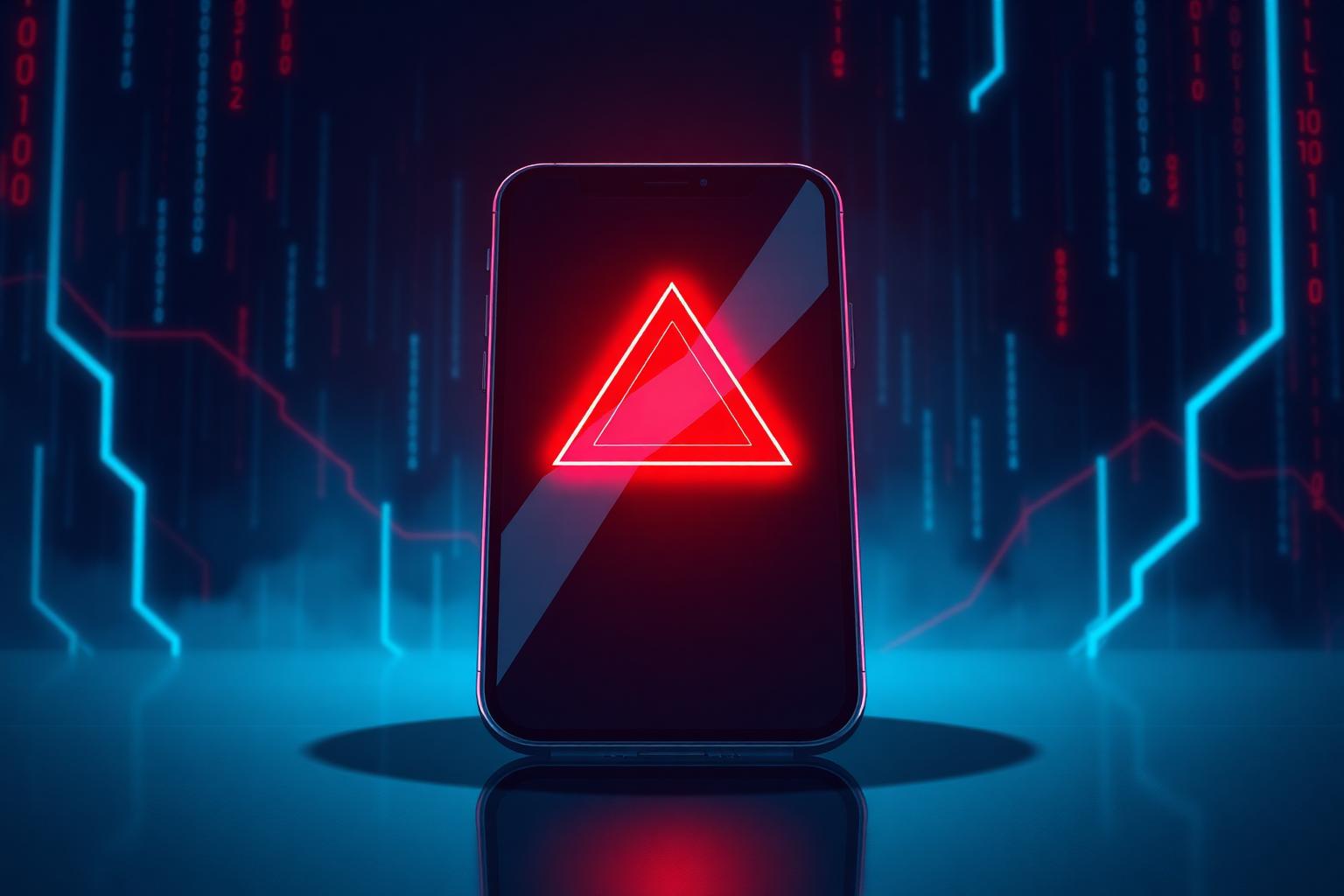
iPhones have a reputation for being safe — and for the average user, they mostly are. Apple's sandboxed operating system, App Store review process, and rapid iOS security patches shut down the vast majority of attacks that plague other platforms. But "safe" is not the same as "unhackable." In 2026, iPhones are being compromised more than ever through phishing, malicious mobile device management (MDM) profiles, credential stuffing on Apple ID, physically installed stalkerware, and rare but very real zero-click spyware like NSO Group's Pegasus.
The good news: a hacked iPhone almost always leaves fingerprints. If you know what to look for, you can catch a compromise early, kick the attacker out, and secure your device before real damage is done. This guide from the Cybrvault Miami cybersecurity team walks through the 15 clearest warning signs your iPhone is hacked in 2026, and gives you a step-by-step recovery checklist that anyone can follow.
If you're already sure you're compromised, jump to How to remove a hacker from your iPhone or check our companion guide, How to check if your phone is tapped in 2026.
Can an iPhone actually be hacked?
Yes — but not in the Hollywood "a hacker across the world clicks a button and owns your phone" sense. In the real world, iPhone compromises fall into five categories, and understanding them helps you spot the symptoms faster.
- Phishing and Apple ID takeover — the #1 way iPhones get "hacked." A fake iCloud login page or SMS steals your Apple ID, and the attacker signs in on their own device to read your iMessages, photos, notes, contacts, and location.
- Malicious Configuration Profiles or MDM — a scam, sketchy app, or "free VPN" installs a profile that lets the attacker read traffic, force apps, and change settings.
- Stalkerware installed with physical access — an ex-partner, spouse, or coworker who knows your passcode installs a family-tracking app, hidden monitoring tool, or abuses Screen Time and Find My.
- Jailbreak-based malware — rare, but if your iPhone has been jailbroken (with or without your knowledge), the security sandbox is gone and any app can do almost anything.
- Zero-click spyware (Pegasus, Predator, etc.) — high-end, targeted attacks against journalists, activists, executives and government figures. Extremely rare for regular users, but real.
Most of the warning signs below apply to all five. Some, like an unknown Configuration Profile, are dead giveaways.
15 warning signs your iPhone is hacked
1. Sudden, unexplained battery drain
Spyware, keyloggers and remote-monitoring apps run constantly in the background, capturing location, keystrokes, screenshots or microphone audio. That workload burns battery. If your iPhone was easily lasting a full day last week and now dies by 3pm — with no new app, no iOS update, and no change in usage — treat it as a warning sign.
Check Settings → Battery → Battery Usage by App. If a system process like "backgroundd," an unknown app, or a familiar app you barely use is at the top, investigate.
2. The iPhone runs hot even when idle
Warmth during gaming, video calls, charging or 5G streaming is normal. Warmth while the phone sits on your desk locked, screen off, is not. Overheating combined with battery drain is one of the strongest tells that something is running secretly in the background.
3. Cellular data usage suddenly spikes
Spyware exfiltrates data — screenshots, GPS pings, contacts, messages — and it has to send that data somewhere. Open Settings → Cellular and scroll down. If an unfamiliar app, or an app that has no business using data (like Calculator), shows hundreds of MB or several GB, dig in.
4. Unknown apps you don't remember installing
Swipe through every home screen page and open the App Library. Look for apps you don't recognize, generic-looking icons (magnifying glass, gear, cloud, shield), or duplicates of Apple apps (a second "Settings," "Notes," or "Find My"). Stalkerware often disguises itself as a system utility.
5. A Configuration Profile you didn't install
This is one of the clearest signs of compromise on iOS. Go to Settings → General → VPN & Device Management. On a clean personal iPhone, this section should be empty (or only show a profile from your employer if it's a work device). Any unknown profile — especially one with permissions like "Mobile Device Management" — should be removed immediately.
6. Random pop-ups, ads and Safari redirects
If Safari suddenly redirects to fake "Your iPhone has 27 viruses!" pages, gambling sites, adult content or App Store pages you didn't request, you likely have a malicious profile, a compromised DNS setting, or a rogue app. Legitimate Apple alerts never appear inside a Safari webpage.
7. Apple ID sign-in alerts from unknown devices or locations
Apple emails and pushes an alert every time your Apple ID signs in on a new device. If you get one you didn't trigger — especially from another state or country — assume your Apple ID password is compromised. Change it immediately and revoke the unknown device.
8. Find My is turned off, or your device disappears from it
Attackers who compromise your Apple ID often disable Find My so you can't remotely lock or wipe the phone. If Find My mysteriously turns off, or your iPhone vanishes from the list of devices at appleid.apple.com, someone else likely has your credentials.
9. Two-factor authentication codes you didn't request
Random 2FA codes from Apple, your bank, Instagram, Gmail or Coinbase mean someone knows your password and is trying to log in. Never share the code — change the password of any account that pushes an unexpected code.
10. The green or orange status dot appears when nothing is open
In iOS, a green dot in the top-right of the status bar means an app is using your camera; an orange dot means an app is using your microphone. If you see either dot while you're not on a call, not recording, and no camera or voice app is open, swipe down Control Center — iOS shows the exact app that most recently accessed the mic or camera.
11. Texts, iMessages or emails you didn't send
Check Messages, Mail Sent, and any social DMs. Outgoing messages you didn't write — especially links, crypto scams or "hey is this you?" phishing bait sent to your contacts — usually mean your Apple ID, email or messaging apps are being used by someone else.
12. Jailbreak apps like Cydia, Sileo or Zebra
If you find Cydia, Sileo, Zebra, Filza or checkra1n installed and you didn't jailbreak the phone yourself, someone else did. A jailbroken iPhone has no meaningful security sandbox and should be restored from scratch.
13. Strange background noise, echoes or clicks on calls
Modern cellular and VoIP calls are almost always clean. Consistent clicking, faint voices, static that only happens on some calls, or long silence after you hang up can indicate call-recording spyware or, more commonly, a network-side wiretap. Combine this with other signs — no single symptom is proof by itself.
14. Apps crash constantly or the phone reboots on its own
Frequent, unexplained reboots, apps that quit the moment you open them, or the phone locking up and rebooting mid-use can be signs of an exploit trying (and sometimes failing) to gain persistence. This is especially true if it started after clicking a suspicious link, opening a strange iMessage, or connecting to a random public Wi-Fi.
15. Settings change on their own
New VPNs appear. iCloud toggles flip off. A new email account shows up under Mail. A DNS server appears in your Wi-Fi settings. Screen Time restrictions you didn't set appear. Face ID has an extra face registered. Any of these should trigger a full security review.
How to check your iPhone for spyware in 2026 (step-by-step)
- 1Update to the latest iOS. Settings → General → Software Update. Apple patches most spyware delivery chains within days.
- 2Open Settings → General → VPN & Device Management and remove any Configuration Profile, MDM or VPN you don't recognize.
- 3Review Settings → Privacy & Security → Location Services, Microphone, Camera, and Full Disk Access. Turn off any app that shouldn't have it.
- 4Open Settings → Battery → Battery Usage by App and Settings → Cellular. Investigate anything using significant power or data that you don't use.
- 5Open Safety Check (Settings → Privacy & Security → Safety Check → Emergency Reset or Manage Sharing & Access) to instantly cut off people and apps who have access to your data, location, and accounts.
- 6Change your Apple ID password at appleid.apple.com, review the list of trusted devices, and remove any you don't recognize.
- 7Change passwords on your primary email, banking, and social accounts — using a password manager, and 2FA everywhere.
- 8Turn on Lockdown Mode (Settings → Privacy & Security → Lockdown Mode) if you're a high-risk user or if signs of compromise are severe.
- 9If in doubt, back up your data and Erase All Content and Settings, then restore only your data (not your apps) from iCloud.
When to enable Lockdown Mode
Lockdown Mode is Apple's strongest built-in protection. It disables many attack surfaces used by mercenary spyware — most message attachment types, complex web technologies, incoming FaceTime calls from unknown numbers, and wired accessory connections when locked. It's overkill for most users, but if you're a journalist, activist, executive, government official, high-net-worth individual, or the target of a stalker or ex-partner, turn it on.
Enable it under Settings → Privacy & Security → Lockdown Mode. You can turn it off just as quickly.
How to remove a hacker from your iPhone
The full playbook lives in our companion article How to remove a hacker from your phone in 2026, but here's the short version:
- 1Disconnect from Wi-Fi and cellular data (Airplane Mode) if an attack seems active.
- 2Change your Apple ID password from another trusted device.
- 3Revoke access from all unknown devices in Settings → [your name] → Devices.
- 4Delete unknown apps, profiles, VPNs, and Configuration Profiles.
- 5Reset Network Settings (Settings → General → Transfer or Reset iPhone → Reset → Reset Network Settings).
- 6If problems continue, back up, then Erase All Content and Settings and set up as new.
- 7Turn on 2FA, review recovery contacts, and consider Lockdown Mode.
How to protect your iPhone from being hacked
- Keep iOS and every app updated within a day or two of release.
- Use a long, unique Apple ID password stored in a password manager (1Password, Bitwarden, iCloud Keychain).
- Enable two-factor authentication on your Apple ID and every important account.
- Never install Configuration Profiles, MDM profiles or "free VPNs" from unknown sources.
- Do not tap links in unexpected texts, iMessages, WhatsApps or emails — especially those claiming to be from Apple, USPS, banks, or the IRS.
- Use only official App Store apps. Do not sideload or jailbreak.
- Set a strong 6-digit (or alphanumeric) passcode and enable Face ID or Touch ID.
- Turn off automatic connection to open Wi-Fi networks.
- Review Settings → Privacy & Security → Safety Check at least once a year.
- If you're a high-risk user, enable Lockdown Mode and consider a dedicated hardened phone for sensitive work.
When to call a cybersecurity professional
Reset the phone, change passwords, and turn on Lockdown Mode is enough for 95% of consumer compromises. But if you're in Miami or South Florida and you're facing any of the following, contact our team at Cybrvault:
- You suspect stalkerware installed by an ex-partner, spouse, or someone with access to your passcode.
- You're a business owner, executive, attorney or journalist and the compromise looks targeted.
- You've seen Apple's rare Threat Notification ("Apple detected that you are being targeted by a mercenary spyware attack").
- The device keeps re-infecting even after a full erase.
- You need forensic evidence preserved for a legal case.
See our cybersecurity services and the Miami cybersecurity page for how we help — including on-site iPhone forensic sweeps, Apple ID account recovery, and executive protection setups.
The bottom line
In 2026, iPhones are still one of the most secure consumer devices you can carry — but no device is invincible. Battery drain, overheating, unknown profiles, unexplained data usage, Apple ID alerts, and unknown apps are the biggest tells that something is wrong. Update iOS, remove unknown profiles, run Safety Check, change your Apple ID password, and (if the threat is serious) turn on Lockdown Mode. Do those five things and you'll shut down the vast majority of iPhone attacks before they cause real harm.
Get the 10-step Cyber Hardening Checklist
The exact steps our Miami team uses to lock down people and small businesses — takes under an hour. Instant access, no call required.
// frequently asked
Questions teams ask us
Can iPhones really be hacked?+
Yes. Most iPhone "hacks" in 2026 come from phishing (stealing your Apple ID), malicious Configuration Profiles, stalkerware installed by someone with physical access, or — rarely — targeted zero-click spyware like Pegasus. Random iPhones being remotely hacked by strangers is much less common than most people assume.
What is the first sign that an iPhone is hacked?+
The most common first signs are sudden, unexplained battery drain and overheating while the phone is idle. Together with a spike in cellular data usage, they usually point to a hidden app running in the background.
Does resetting an iPhone remove hackers?+
In almost all cases, yes. Backing up your data, then using Settings → General → Transfer or Reset iPhone → Erase All Content and Settings will wipe malicious apps, Configuration Profiles, jailbreaks and spyware. You must also change your Apple ID password and revoke unknown devices, or the attacker can re-enter through iCloud.
Should I turn on Lockdown Mode?+
Not for most users — it disables some everyday features. But if you're a journalist, activist, executive, government worker, or the target of a serious personal threat, Lockdown Mode is the strongest protection Apple offers against advanced spyware.
How do I know if someone is spying on my iPhone through iCloud?+
Check Settings → [your name] → Devices for any device you don't own, review your Apple ID sign-in history at appleid.apple.com, and run Safety Check (Settings → Privacy & Security → Safety Check) to see and revoke every person and app with access to your data.
Can someone hack my iPhone just by sending a text or link?+
For most users, no — tapping a malicious link is what causes the damage (phishing, fake login pages). True zero-click exploits that require no interaction do exist (Pegasus is the most famous), but they are extremely expensive and used against specific high-value targets, not random consumers.
Does antivirus for iPhone actually work?+
iOS is sandboxed, so traditional antivirus apps can't scan other apps the way they do on a computer. What legitimate "security" apps on iPhone do is block malicious websites, warn about weak Wi-Fi, and check your email against data breaches — useful, but not a magic scanner.
// miami, fl services
Cybersecurity built for South Florida
// need help applying this?
Book a free, confidential consultation.
Our engineers can map this to your environment in 30 minutes.
Get secured// keep reading
Related articles
Mobile Security
How to Remove Malware from iPhone: The 2026 Step-by-Step Guide
Think your iPhone has a virus? Here's exactly how to detect, remove, and prevent malware on iPhone in 2026 — covering Pegasus-style spyware, malicious profiles, sketchy VPNs, calendar spam, and the iOS 18/19 reset steps Cybrvault uses for clients.
Mobile Security
How to Tell If Your Phone Is Hacked: 15 Warning Signs and What to Do (2026 Guide)
Worried your iPhone or Android has been hacked? Here are the 15 telltale signs your phone is compromised, how to confirm it, and the exact steps to remove the hacker and lock everything back down — written by Miami cybersecurity firm Cybrvault.
Mobile Security
How to Know if Your Phone Is Hacked: 17 Warning Signs and What to Do Next (2026)
Battery draining fast, weird pop-ups, strange texts in your sent folder? Here are the 17 real signs your phone is hacked in 2026 — and the exact step-by-step playbook Cybrvault uses to lock attackers out, restore your accounts, and stop it happening again.
Under attack right now? Our 24/7 line responds immediately.