
Home Security
How to Change Your Router Password (2026): Step-by-Step Guide for Every Major Brand
A complete 2026 walkthrough for changing both router passwords — the Wi-Fi password and the far more important admin password — with exact steps for Xfinity, AT&T, Verizon, Netgear, TP-Link, ASUS, eero, Google Nest and Orbi, plus what to do if you are locked out and how Miami homes get compromised through routers.
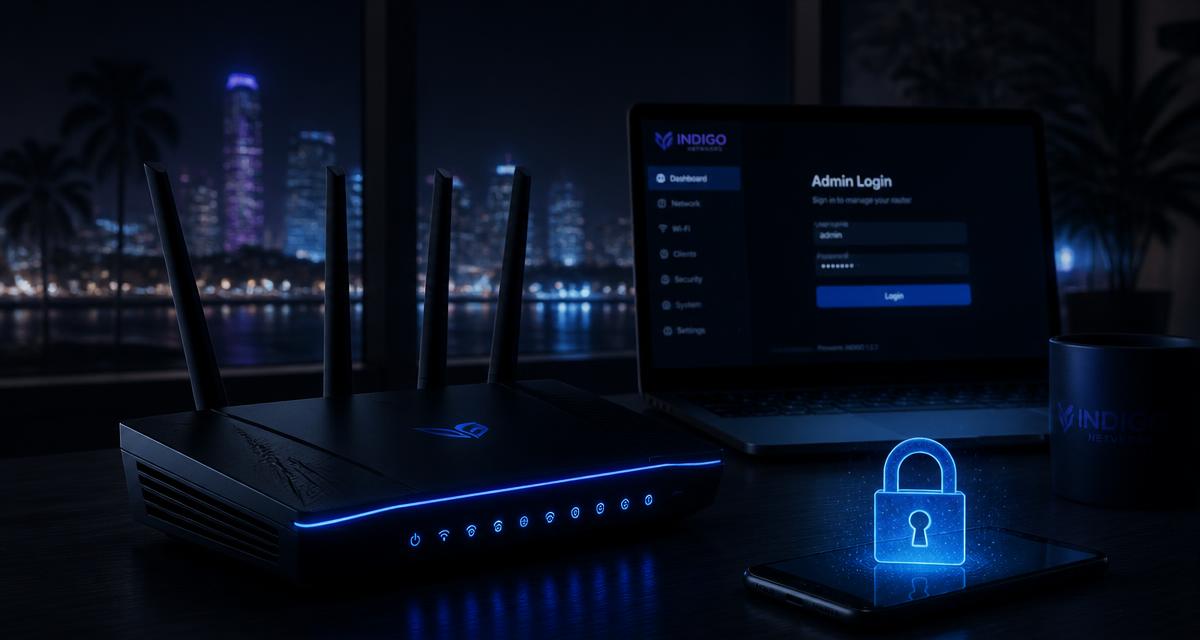
Changing your router password sounds like a five-minute task, and it can be — but almost everyone does only half of it. Home routers have two separate credentials, and the one people forget is the one that matters most to an attacker. This guide covers both, with exact steps for the routers and ISP gateways actually used in South Florida homes, and the settings you should fix while you are already logged in.
The two router passwords, and why the difference matters
Every home router ships with two distinct credentials that are easy to confuse:
- The Wi-Fi password (also called the network key, WPA key or passphrase). This is what you type into a phone or laptop to join the network. Changing it kicks unknown devices off — but it does not stop someone who already has administrative access.
- The router admin password. This is what you type into the router's web interface or app to change settings. On many routers the factory value is still admin / admin, admin / password, or printed on a sticker on the device.
Someone with the admin password can do far more damage than someone who merely has Wi-Fi access. They can change your DNS servers so every site you visit is silently resolved through a server they control, open port forwards into your cameras and NAS, add their own device to a permanent allow-list, disable logging, and read the Wi-Fi password in plain text from the settings page. This is precisely why router-based attacks are so persistent: reinstalling Windows or resetting a phone does nothing if the router is still hostile.
"If you only have time for one change today, change the admin password. The Wi-Fi password is second."— Cybrvault incident response team
Before you start: three things to have ready
- 1A device already connected to the network — ideally by Ethernet cable, because changing Wi-Fi settings will disconnect wireless devices mid-process.
- 2A password manager open, so the new passphrase gets saved somewhere other than a sticky note. If you have no manager, Bitwarden and 1Password both work fine for home use.
- 3A list of every device that will need the new Wi-Fi password: phones, laptops, TVs, printers, thermostats, doorbells, cameras, robot vacuums, game consoles and smart speakers. Missing one is the usual reason people avoid this task, and it takes fifteen minutes to redo them all.
Step 1 — Find your router's admin address
On a connected device, open a browser and try these addresses in order. One of them will load a login page:
- 192.168.1.1 — most common (Netgear, TP-Link, Linksys, ASUS, many ISP gateways)
- 192.168.0.1 — common on TP-Link, D-Link and some Netgear models
- 10.0.0.1 — Xfinity/Comcast gateways and some Apple gear
- 192.168.1.254 — many AT&T and older 2Wire/Pace gateways
- router.asus.com, tplinkwifi.net, routerlogin.net — vendor shortcuts that resolve to the same page
If none of those work, find the default gateway address. On Windows, open Command Prompt and run ipconfig — the line labeled Default Gateway is your router. On macOS, go to System Settings, Network, Details, TCP/IP, and read the Router field. On iPhone or Android, tap the connected Wi-Fi network and look for Router or Gateway in the details.
Step 2 — Log in with the current admin credentials
Check the sticker on the underside or back of the router. Manufacturers usually print the default admin username and password there, alongside the factory Wi-Fi name and key. If someone changed it and nobody remembers what to, skip to the lockout section near the end of this guide.
A warning worth taking seriously: default credentials for essentially every consumer router model are published in searchable lists. If your router still uses its factory admin password and remote management is enabled, it is reachable from the open internet by anyone running a scan — no skill required.
Step 3 — Change the admin password first
Once inside, the setting is almost always under Administration, System, Management, or Advanced, labeled something like Router Password, Admin Password, or Change Password. Set it to a strong, unique passphrase, save, and expect to be logged out and asked to sign in again with the new value.
What a good router password looks like in 2026: at least 16 characters, ideally four or more unrelated words (correct-marble-harbor-typhoon), unique to this device, and stored in your password manager. Do not use your Wi-Fi password, your email password, your street address, your building name, or anything a neighbor could guess.
Step 4 — Change the Wi-Fi password
Look for Wireless, Wi-Fi, or Network Settings. You will usually see separate entries for the 2.4 GHz and 5 GHz bands (and 6 GHz on Wi-Fi 6E/7 hardware). Set the same passphrase across all bands unless you have a specific reason not to — mismatched keys cause devices to roam badly.
While you are on this screen, set Security Mode to WPA3-Personal if your router supports it, or WPA3/WPA2 mixed mode if you still run older devices. If the only options are WPA2-PSK (AES) and WPA/WPA2 mixed, choose WPA2-PSK (AES). Never leave a network on WEP, TKIP, or Open — those are trivially broken.
Save, then reconnect each device with the new passphrase. Anything that fails to reconnect and that you do not recognize is worth investigating — see our guide on how to tell if your home Wi-Fi has been hacked.
Brand-by-brand: exact steps for common routers and gateways
Xfinity / Comcast (xFi Gateway)
Use the Xfinity app: WiFi tab, select your network, Edit WiFi settings, change the name or password, Save. Browser alternative: go to 10.0.0.1, log in with admin and the password on the gateway label (often the default is simply password on older units), then Gateway, Connection, Wi-Fi, Edit. If you rent the gateway, changes made in the app override local ones.
AT&T Fiber / Internet (BGW320, BGW210)
Go to 192.168.1.254 and enter the Device Access Code printed on the sticker — this is not the same as the Wi-Fi key. Then Home Network, Wi-Fi, and edit the network name and password. The Smart Home Manager app does the same thing without needing the access code.
Verizon Fios (Fios Router, Gateway G3100)
In the My Fios app: Internet, Wi-Fi settings, Edit. In a browser: 192.168.1.1, log in with the admin password on the router label, then Wi-Fi Settings, Primary Network, and set the new password. Admin password is changed under Advanced, Administration.
Netgear (Nighthawk, R-series)
Browse to routerlogin.net or 192.168.1.1, log in (default admin / password), then Wireless for the Wi-Fi key and Administration, Set Password for the admin credential. The Nighthawk app does both from the Settings tab.
TP-Link (Archer, Deco)
Archer routers: tplinkwifi.net or 192.168.0.1, then Wireless, Wireless Settings for the key, and System Tools, Administration for the login. Deco mesh is app-only: More, Wi-Fi, edit password; the TP-Link ID password governs admin access.
ASUS (RT and ROG series)
router.asus.com or 192.168.1.1, then Wireless, General for the WPA pre-shared key, and Administration, System for the router login. ASUS also lets you enable automatic firmware updates on the same Administration page — turn it on.
eero, Google Nest Wifi and Netgear Orbi
These are app-managed mesh systems with no traditional local admin page. In eero: Settings, Network settings, Wi-Fi password. In Google Home: your Wi-Fi network, Settings, Show password / Edit. In Orbi: the Orbi app, Settings, Wi-Fi Settings. For all three, the account password on your eero, Google or Netgear login is effectively the admin password — protect it with a unique passphrase and turn on two-factor authentication.
Five settings to fix while you are already logged in
- 1Disable WPS. The push-button pairing feature has a well-known PIN brute-force weakness and is rarely needed once devices are connected.
- 2Disable remote management / remote administration / WAN access. Unless you specifically need to administer the router from outside the house, this should be off — it is the single most common way home routers get taken over.
- 3Enable automatic firmware updates. Router firmware patches real, exploited vulnerabilities; most home routers run versions that are years out of date.
- 4Turn on a guest network and move IoT devices onto it. Cameras, doorbells, TVs, plugs and vacuums do not need to see your laptop or NAS. Segmenting them limits what a compromised device can reach.
- 5Review the connected-devices list and remove or block anything you cannot identify. Rename the devices you do recognize so future reviews take two minutes instead of twenty.
If you are locked out of the router
When nobody knows the admin password, the only reliable fix is a factory reset: hold the recessed reset button with a paperclip for roughly 30 seconds while the router is powered on, until the lights cycle. This wipes everything — network name, password, port forwards, static IPs, parental controls, guest networks — and restores the factory defaults printed on the sticker. Every device in the house will need reconnecting.
For ISP-managed gateways, call the provider first. Comcast, AT&T and Verizon can often push a credential reset remotely and avoid taking your service offline while you rebuild settings.
How often should you change it?
Rotating a strong, unique Wi-Fi password on a fixed schedule is not the best use of your time — modern guidance (including NIST's) favors long, unique credentials that change on an event rather than a calendar. Change it when one of these happens:
- A roommate, tenant, short-term rental guest, contractor, cleaner or former partner has had the password
- You see an unrecognized device on the network, or your internet is unexplainably slow at odd hours
- The password was ever texted, emailed, written on a whiteboard, or posted for guests
- You bought the router used, inherited it with a home purchase, or moved into a place with existing equipment
- Your household appears in a breach notification and you reused that password anywhere
Why this matters more in Miami than most places
South Florida has an unusually high density of short-term rentals, condo buildings with dozens of overlapping networks, seasonal residents who leave homes empty for months, and a large population of business owners running work devices from home offices. All four conditions increase the value of a compromised home router.
In practice, the pattern we see most in Miami home engagements is not a sophisticated attack. It is a rental gateway that still has factory admin credentials, remote management left on by the installer, a Wi-Fi password shared with a dozen past guests, and a set of cameras and smart locks sitting on the same flat network as the homeowner's laptop. Fixing the two passwords and segmenting IoT closes most of that gap in under an hour.
If you want a professional review of your home network, we cover it under Miami home security and personal security. For a broader hardening walkthrough, see how to secure your home Wi-Fi and how to protect your home computer from hackers.
Quick reference checklist
- 1Connect to the network, preferably by Ethernet
- 2Open 192.168.1.1, 192.168.0.1 or 10.0.0.1 (or the provider's app)
- 3Log in with the credentials on the router sticker
- 4Change the admin password to a 16+ character unique passphrase
- 5Change the Wi-Fi password and set security to WPA3 or WPA2-AES
- 6Disable WPS and remote management; enable auto firmware updates
- 7Create a guest/IoT network and move cameras and smart devices to it
- 8Reconnect your devices and review the connected-device list
- 9Save both passwords in a password manager
Get the 10-step Cyber Hardening Checklist
The exact steps our Miami team uses to lock down people and small businesses — takes under an hour. Instant access, no call required.
// frequently asked
Questions teams ask us
What is the difference between the Wi-Fi password and the router password?+
The Wi-Fi password (network key) lets devices join your wireless network. The router admin password lets someone log into the router's settings and reconfigure it — change DNS, open ports, view the Wi-Fi key in plain text, or lock you out. They are separate credentials and both should be changed from their factory defaults.
What is the default password for my router?+
It is printed on a sticker on the underside or back of the device, usually next to the model and serial number. Common factory values are admin/admin, admin/password, or a randomized string. Because default credentials for nearly every model are publicly listed, any router still using one should be changed immediately.
Will changing my router password disconnect everything?+
Changing the Wi-Fi password disconnects every wireless device until you re-enter the new key on each one — phones, laptops, TVs, printers, cameras, thermostats, speakers and consoles. Changing only the admin password does not disconnect anything.
How do I change my router password if I forgot the admin login?+
Hold the recessed reset button for about 30 seconds while the router is powered on to restore factory defaults, then log in with the credentials on the sticker. This erases all custom settings including your network name, password, port forwards and parental controls. For an ISP-supplied gateway, call the provider first — they can often reset the credentials remotely.
How often should I change my Wi-Fi password?+
Change it based on events rather than a calendar: after guests, tenants, contractors or a former partner have had it, after you spot an unknown device on the network, or if the password was shared over text, email or a whiteboard. A long unique passphrase that never leaks is safer than a weak one rotated monthly.
Is WPA3 better than WPA2 for a home network?+
Yes. WPA3 protects against offline password-guessing attacks and encrypts traffic on open networks. Use WPA3-Personal if all your devices support it, or WPA3/WPA2 mixed mode if you still run older hardware. Never use WEP, TKIP or an open network.
Can someone hack my Wi-Fi even after I change the password?+
Yes, if they retain admin access to the router, if WPS is still enabled, if remote management is exposed to the internet, or if the firmware has an unpatched vulnerability. That is why changing the admin password, disabling WPS and remote access, and enabling automatic firmware updates all matter alongside the Wi-Fi key.
// miami, fl services
Cybersecurity built for South Florida
// need help applying this?
Book a free, confidential consultation.
Our engineers can map this to your environment in 30 minutes.
Get secured// keep reading
Related articles
Home Security
Home Security Audit (2026): The South Florida Homeowner's Room-by-Room Checklist
A complete 2026 home security audit for South Florida homeowners — a room-by-room physical walkthrough plus a full home cybersecurity checklist covering your router, cameras, smart locks, accounts and personal data. Includes a scoring system, what a professional home security assessment costs in Miami-Dade, Broward and Palm Beach, and how to fix the highest-risk findings first.

Home Security
How to Secure Your Home WiFi in Miami: The Complete 2026 Homeowner's Guide
Miami homeowners are a top target for WiFi-based attacks in 2026 — from drive-by router hacks in Brickell condos to fake xfinitywifi hotspots in Coral Gables. This is the exact 12-step home WiFi security playbook Cybrvault uses for South Florida families, written for non-technical homeowners.
Home Security
How to Secure Your Home WiFi Network: A Complete Guide for Miami Homeowners
A step-by-step home WiFi security guide for Miami homeowners — router hardening, WPA3, guest networks, IoT segmentation, smart-home protection, and the local threats (storm-season scams, vacation rental sniffing, condo neighbor attacks) that make South Florida households uniquely exposed.
Under attack right now? Our 24/7 line responds immediately.