Guides & How-To
How to Check if Your Computer Is Hacked (Windows 11): 15 Warning Signs and How to Fix It (2026)
A hands-on 2026 guide for Windows 11 users: 15 warning signs your PC has been hacked, the exact built-in tools to confirm it (Task Manager, Event Viewer, netstat, Defender Offline), and the step-by-step recovery playbook Cybrvault uses on Miami client machines.
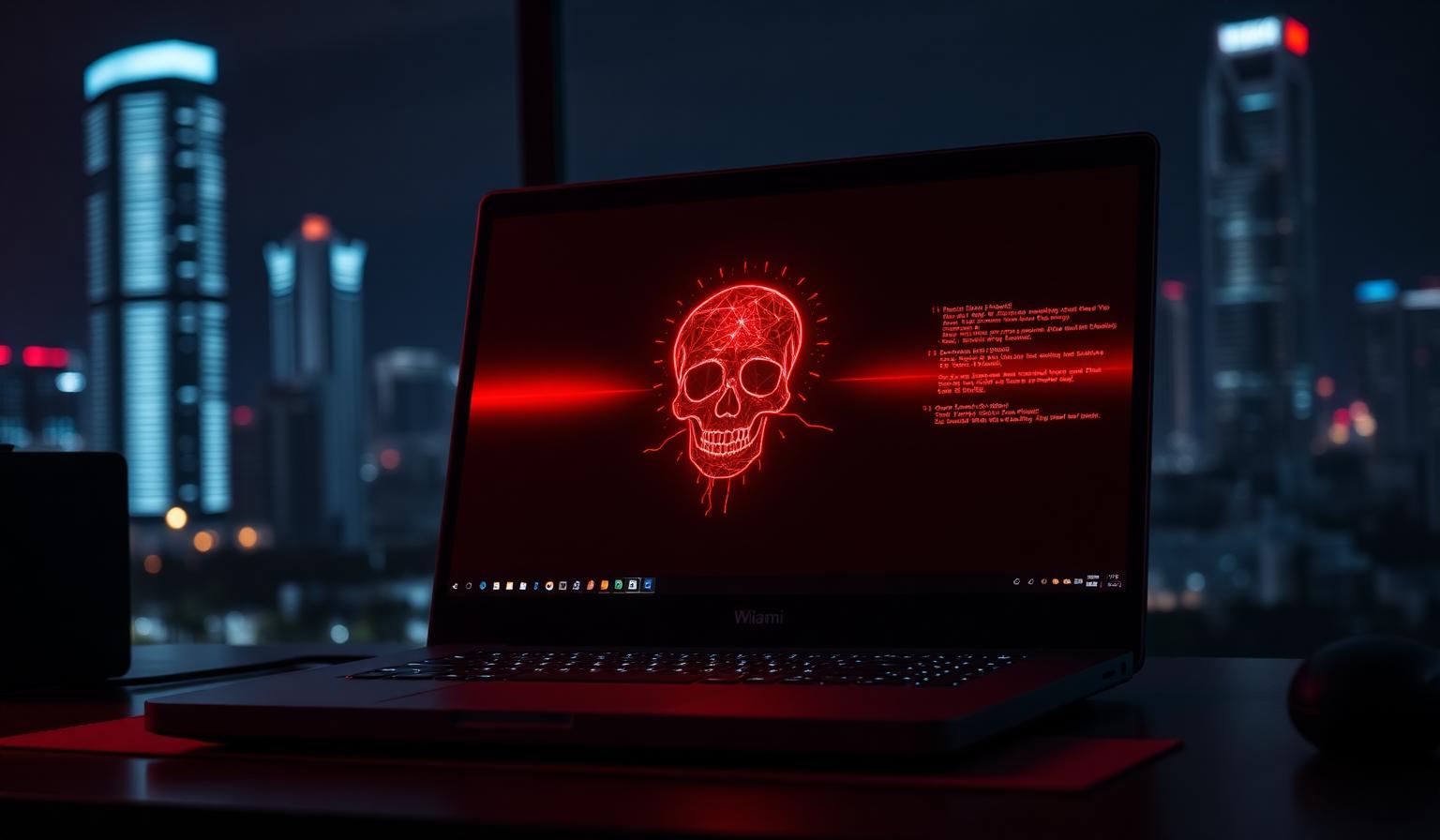
If you searched "how to check if my computer is hacked Windows 11," you're already doing the right thing — trusting the gut feeling that something is off. This guide walks through the 15 warning signs Cybrvault's Miami incident-response team sees most often on compromised Windows 11 machines, the exact built-in tools to confirm each one, and the step-by-step recovery playbook we use on real client PCs in 2026.
Everything here uses tools already on your PC. No downloads, no paid antivirus, no registry hacks. If you'd rather read about phones, see our companion how to know if your phone is hacked guide. If you think credentials have already leaked, run through the email on the dark web guide next.
First: do this before anything else
- 1Unplug the Ethernet cable and turn Wi-Fi off (Action Center → Wi-Fi tile). This stops data exfiltration and cuts remote-access tools mid-session.
- 2Do NOT log into your bank, email, or password manager from this PC. Assume the keyboard is being recorded.
- 3Grab a second device (phone, tablet, another PC) — you'll use it to change passwords once we're done triaging.
- 4If this is a work computer, stop and call IT or your MSP before running scans. Preserving evidence matters more than removing the malware.
15 signs your Windows 11 computer is hacked
1. Windows Security / Microsoft Defender is turned off — and won't turn back on
Open Settings → Privacy & security → Windows Security → Virus & threat protection. If real-time protection is Off and the toggle is greyed out or flips back to Off, malware has almost certainly disabled it via Group Policy or a tampered service. This is one of the most reliable single indicators of compromise on Windows 11.
2. A new local account or admin you didn't create
Settings → Accounts → Other users. Also check `lusrmgr.msc` (Local Users and Groups → Users and → Groups → Administrators). Attackers who gain code execution frequently add a persistence account named something plausible like `defaultuser1`, `HelpAssistant`, `sysadmin`, or a random 8-character string.
3. Unknown apps in Startup
Ctrl + Shift + Esc → Startup apps tab. Sort by Status. Anything Enabled that you don't recognize — especially entries with no publisher, blank icons, or paths under `C:\Users\Public\`, `%APPDATA%\Roaming\`, or `C:\ProgramData\` — is suspicious. Also check Task Scheduler (`taskschd.msc`) for tasks that run at logon or every few minutes.
4. Suspicious processes in Task Manager
Ctrl + Shift + Esc → Details tab. Right-click column headers → Select columns → add "Command line" and "User name." Watch for: `powershell.exe`, `cmd.exe`, `mshta.exe`, `wscript.exe`, or `rundll32.exe` running with encoded (`-enc`) command lines, running as SYSTEM without a parent you recognize, or living in temp folders. Legitimate remote-access tools that attackers abuse: `AnyDesk.exe`, `ScreenConnect.ClientService.exe`, `TeamViewer.exe`, `atera_agent.exe`, `SplashtopStreamer.exe` — if you didn't install them, they're a red flag.
5. Outbound network connections you can't explain
Open PowerShell as Administrator and run:
"netstat -ano -p tcp | Select-String "ESTABLISHED""
Each row ends in a PID. Cross-reference the PID in Task Manager → Details. Connections to IPs you don't recognize, on high ephemeral ports, from processes like `svchost.exe` or `rundll32.exe` — especially to cloud storage, Tor exit nodes, or foreign hosting providers — are worth investigating. Look up unfamiliar IPs on `abuseipdb.com` from your phone.
6. Your browser homepage, search engine, or new tab has changed
Search hijackers redirect you through ad networks or credential-harvesting proxies. Check Edge/Chrome/Firefox → Settings → Search engine and Startup. Also open `edge://extensions/` or `chrome://extensions/` — sort by "Recently added." Anything with permission to "Read and change all data on all websites" that you didn't install is a serious problem.
7. Random pop-ups, browser notifications, or a new toolbar
In Edge: Settings → Cookies and site permissions → Notifications. Revoke everything you don't recognize. Same in Chrome under `chrome://settings/content/notifications`. Persistent notification spam is usually a compromised browser profile, not a virus on the OS.
8. Fan spinning, disk thrashing, or high CPU while idle
Cryptominers and command-and-control beacons often show up as sustained CPU usage from `powershell.exe`, a random `.exe` in `%APPDATA%\Local\`, or a GPU-heavy process you didn't launch. Task Manager → Performance → open Resource Monitor for a clearer picture.
9. Files are encrypted or renamed with weird extensions
Extensions like `.locked`, `.crypt`, `.enc`, or random 6-character suffixes — plus a `README.txt` / `RECOVER_FILES.html` in every folder — mean ransomware. Stop reading, unplug the network, and jump to our ransomware protection guide for small businesses. Do not pay before speaking to an incident response team.
10. You're locked out of your Microsoft account or seeing unfamiliar sign-ins
From a clean device, go to `account.microsoft.com` → Security → Sign-in activity. Foreign IPs, unfamiliar devices, or a new recovery email/phone are all confirmation. Rotate the password and enable passkeys — see our passkeys vs passwords guide.
11. Your webcam light turns on by itself
Settings → Privacy & security → Camera. Review the app list under "Recent activity." Anything using the camera that isn't Teams/Zoom/Slack/your browser is suspicious. Sliding a physical cover over the lens is still the cheapest, best control.
12. Event Viewer shows failed logins, cleared logs, or new services
`eventvwr.msc` → Windows Logs → Security. Filter for Event IDs 4624 (successful logon — check for `Logon Type 10` = RDP), 4625 (failed logon storms), 1102 (audit log cleared — huge red flag), and 7045 (a new service was installed). Under System, look for unexpected `Service Control Manager` entries.
13. Scheduled tasks you didn't create
Task Scheduler (`taskschd.msc`) → Task Scheduler Library. Attackers hide persistence here. Anything under `\Microsoft\Windows\` with a random GUID name, or a task that launches PowerShell with a base64 string, is malicious until proven otherwise.
14. Ransom, sextortion, or "we recorded you" emails referencing a real password
The password is almost always from an old breach, not a live compromise — but confirm with our email on the dark web guide and rotate any reused password immediately.
15. Friends receive messages, invoices, or links "from you"
If contacts get Teams/Outlook/Instagram/Facebook messages you didn't send, your account (not necessarily the PC) is compromised. Check sign-in activity on each service and revoke third-party app tokens.
How to confirm it: the 15-minute Windows 11 triage
- 1Disconnect from the network (Ethernet unplugged, Wi-Fi off).
- 2Ctrl + Shift + Esc → Startup apps: screenshot everything with your phone.
- 3Task Manager → Details → sort by CPU, then by Memory. Screenshot the top 20.
- 4PowerShell (Admin) → `Get-Process | Sort-Object CPU -Descending | Select-Object -First 25`.
- 5PowerShell (Admin) → `netstat -ano -p tcp | Select-String "ESTABLISHED"` — screenshot.
- 6PowerShell (Admin) → `Get-ScheduledTask | Where-Object {$_.State -eq 'Ready'} | Select TaskName, TaskPath` — look for anything odd.
- 7`lusrmgr.msc` → Users → confirm every account.
- 8`eventvwr.msc` → Security → filter for Event ID 4720 (user account created), 4732 (added to admin group), 1102 (log cleared).
- 9Windows Security → Virus & threat protection → Scan options → Microsoft Defender Antivirus (offline scan). Reboots the PC and scans before Windows loads — catches rootkits.
- 10Only after all of the above: reconnect briefly to install pending Windows Updates, then disconnect again.
How to fix it: the recovery playbook
Option A — I'm reasonably sure it's a browser hijack or adware
- 1Remove all unrecognized extensions from every browser.
- 2Reset each browser (Edge: Settings → Reset settings → Restore to defaults).
- 3Uninstall unknown apps: Settings → Apps → Installed apps → sort by Install date.
- 4Run Microsoft Defender Offline Scan.
- 5From a clean device, rotate the passwords for every account you logged into on the PC in the last 30 days.
Option B — Suspected malware, remote-access tool, or persistence
- 1Back up personal files (Documents, Pictures, Desktop) to an external drive — do not back up executables or installers.
- 2Sign out of Microsoft account, then reset the PC: Settings → System → Recovery → Reset this PC → Remove everything → Cloud download (fresh Windows image, not a local copy that could be tampered).
- 3During setup, create a new local admin account with a unique name, then sign into your Microsoft account.
- 4Enable BitLocker, Windows Hello, and Defender Cloud-delivered protection.
- 5From a clean device (phone or another PC), rotate every password, revoke active sessions on Microsoft/Google/Apple/banks, and switch high-value accounts to passkeys.
- 6Enable Controlled Folder Access (Windows Security → Virus & threat protection → Ransomware protection).
Option C — This is a business PC with client, financial, or regulated data on it
Stop. Do not reset. A wipe destroys the forensic evidence you need for a HIPAA, PCI, GLBA, or Florida Information Protection Act (FIPA) notification decision — see our Florida data breach law guide. Isolate the machine (leave it powered on, unplugged from network) and call an incident response team. Cybrvault runs 24/7 IR out of Miami — contact us or reach the Miami cybersecurity services page for the direct line.
How to keep it from happening again
- Turn on automatic Windows Updates and reboot at least weekly.
- Use a non-admin account for daily work; keep a separate admin account for installs.
- Enable Windows Hello with a PIN + biometric; move critical accounts to passkeys.
- Turn on Controlled Folder Access and Tamper Protection in Windows Security.
- Use a reputable password manager and unique passwords for every site.
- Never install cracked software, and be suspicious of "free" tools that ask for admin rights.
- For Miami businesses, add 24/7 monitoring — see our 24/7 monitoring service for what production-grade EDR looks like.
When to call a professional
Reset-and-move-on works for consumer PCs with only personal data. Call in help the moment any of these are true: the PC is used for client work, banking, or regulated data; you find remote-access tools you didn't install; Event Viewer shows cleared audit logs (1102); ransomware notes appear; or you can't tell whether the compromise has spread to other devices on the network. Cybrvault's team handles residential and small-business incidents across Miami-Dade, Broward, and Palm Beach — reach us via the contact page or the Miami personal security page for one-on-one help.
Get the 10-step Cyber Hardening Checklist
The exact steps our Miami team uses to lock down people and small businesses — takes under an hour. Instant access, no call required.
// frequently asked
Questions teams ask us
How do I check if my computer is hacked in Windows 11?+
Open Task Manager (Ctrl+Shift+Esc), review the Startup apps and Details tabs for unfamiliar processes, run `netstat -ano -p tcp` in PowerShell to see outbound connections, check Settings → Accounts → Other users for unknown accounts, and run a Microsoft Defender Offline Scan from Windows Security. If Defender is disabled and won't turn back on, treat the PC as compromised.
What are the most common signs a Windows 11 PC is hacked?+
The most reliable signs are: Windows Defender disabled and greyed out, a new local admin account you didn't create, unknown startup apps, browser homepage or search engine changed, persistent pop-ups, unexplained high CPU while idle, outbound network connections to unknown IPs, and friends receiving messages you didn't send.
Can Windows 11 be hacked even with Microsoft Defender turned on?+
Yes. Defender catches the vast majority of commodity malware, but social-engineering attacks that trick you into installing a legitimate remote-access tool (AnyDesk, ScreenConnect, TeamViewer) or into granting an OAuth token can fully compromise a machine while Defender reports it as clean.
Does resetting Windows 11 remove all viruses and hackers?+
A Reset this PC → Remove everything → Cloud download will remove almost every user-mode malware family. It will NOT rotate your passwords, revoke stolen session tokens, or remove attacker access to your online accounts. Always change passwords and revoke sessions from a clean device after a reset.
How do I see if someone is remotely connected to my Windows 11 PC?+
In Event Viewer (`eventvwr.msc`) → Windows Logs → Security, filter for Event ID 4624 and look for Logon Type 10 (RemoteInteractive/RDP). In PowerShell run `qwinsta` to see active sessions and `netstat -ano -p tcp | findstr :3389` to see RDP connections. Check Task Manager for AnyDesk, ScreenConnect, TeamViewer, or Splashtop processes you didn't install.
Is a slow computer always a sign of hacking?+
No — most slow PCs are just full disks, background updates, or aging hardware. Slowness only points to compromise when it's paired with other indicators: unknown processes, Defender disabled, network activity you can't explain, or files being modified without your input.
Should I unplug my computer from the internet if I think it's hacked?+
Yes — immediately. Disconnecting from the network stops active data exfiltration, cuts remote-access sessions, and prevents further lateral movement to other devices in your home or office. Keep the PC powered on so forensic evidence in memory is preserved, but pull the Ethernet cable and turn Wi-Fi off.
// miami, fl services
Cybersecurity built for South Florida
// need help applying this?
Book a free, confidential consultation.
Our engineers can map this to your environment in 30 minutes.
Get secured// keep reading
Related articles
Guides & How-To
How to Check if Your Phone Is Tapped: 12 Signs, Diagnostic Codes and What to Do (2026 Guide)
A 2026 field guide from Cybrvault's investigators: the 12 signs your phone is being tapped, the exact iPhone and Android codes to run right now, how to tell wiretap from spyware from a bad battery, and the step-by-step playbook to lock an attacker out for good.

Managed IT
IT Support in Miami (2026): Costs, Response Times & How to Pick the Right Provider
What IT support actually costs in Miami in 2026, the response times you should demand in writing, the difference between break-fix and managed IT, the security controls every provider should include by default, and the exact questions to ask before you sign.
Home Cybersecurity
How to Protect Your Home Computer From Hackers: The 2026 Complete Prevention Guide
A no-nonsense 2026 guide to preventing hacking on your home computer — the exact settings, tools, and habits our engineers set up for Miami families to stop credential stuffing, ransomware, remote access trojans, phishing, and Wi-Fi intrusions before they ever reach your PC or Mac.
Under attack right now? Our 24/7 line responds immediately.