
Home Cybersecurity
How to Tell If Someone Is Using Your Wi-Fi (2026): The Miami Homeowner's Guide to Finding & Kicking Off Strangers
Slow internet, a router that blinks all night, devices you don't recognize. This 2026 guide shows you exactly how to see every device connected to your home Wi-Fi on any router, how to identify the mystery ones by MAC address and manufacturer, how to tell a neighbor freeloading from an actual intrusion, and the exact steps to lock your network down for good — written for South Florida homes, condos and short-term rentals.
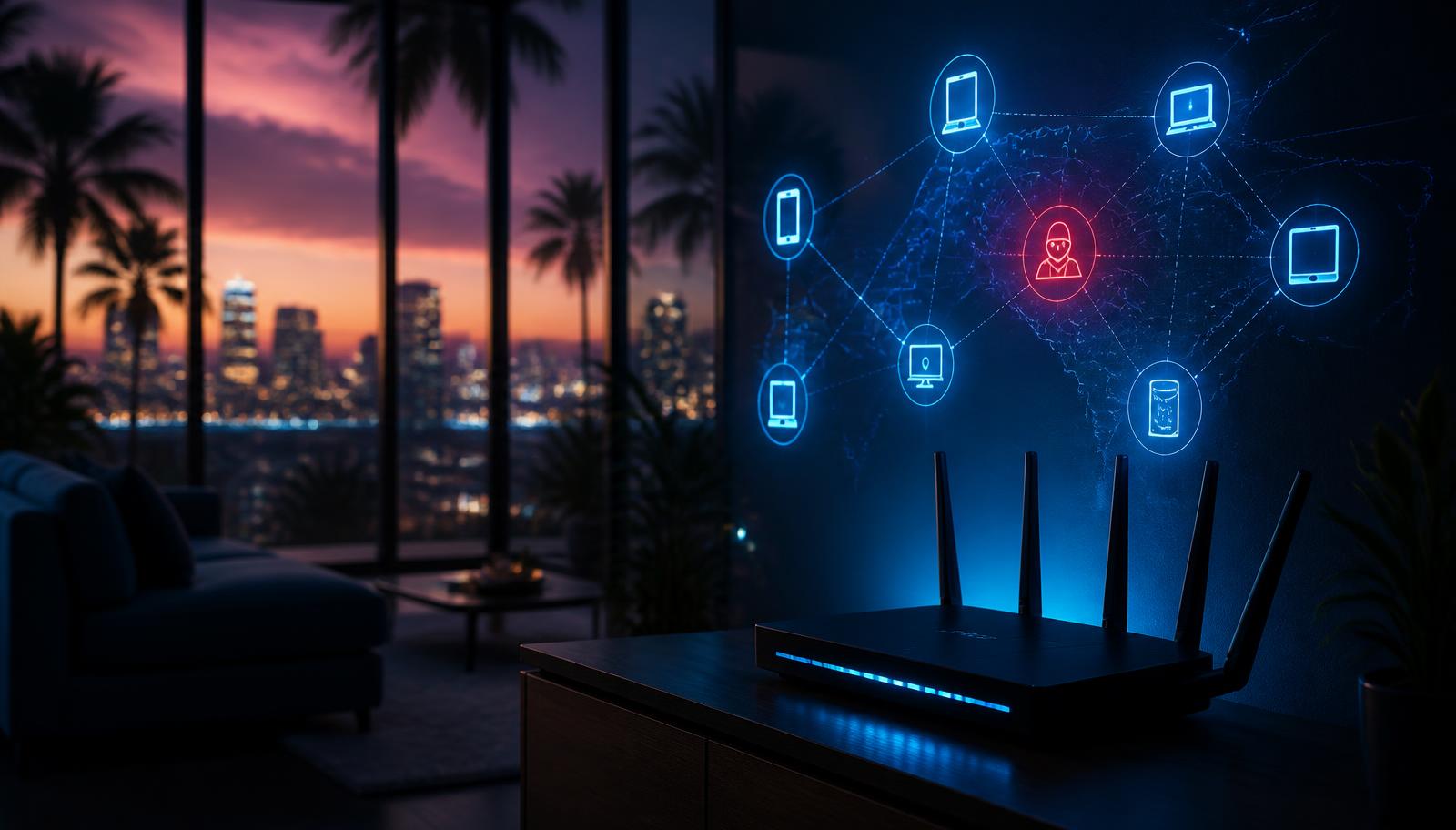
It usually starts with a feeling rather than an alert. Netflix buffers at 9 p.m. in a building where it never used to. The router in the hallway is blinking like it's under load while everyone in the apartment is asleep. Or you open your carrier app out of curiosity and find you burned through 400 GB in a month when you normally use 150.
Then comes the question every homeowner eventually types into Google: how do I tell if someone is using my Wi-Fi?
This guide answers it completely and in order — the quick check, the thorough check, how to read the results without panicking at your own smart plug, how to tell freeloading from a genuine breach, and how to shut the door permanently. We run residential and small-business network assessments across South Florida, and the patterns in Miami condo towers, Brickell high-rises, Kendall single-family homes and short-term rentals are specific enough that we've called them out throughout.
First: the 60-second check that actually works
Skip the apps for a moment. The authoritative list of who is on your network lives inside your router, because the router is what hands out the addresses. Every other tool is guessing by comparison.
- 1Connect a laptop or phone to your home Wi-Fi (not cellular).
- 2Open a browser and go to http://192.168.1.1 — if that fails, try http://192.168.0.1, http://10.0.0.1, or http://192.168.1.254.
- 3Log in. The admin username and password are usually on a sticker on the bottom of the router. If you use an ISP app (Xfinity, AT&T Smart Home Manager, Verizon My Fios) or a mesh app (eero, Google Home, Deco, Orbi), open that instead — same data, friendlier layout.
- 4Find the section named Attached Devices, Connected Devices, Device List, DHCP Clients, Client List or Network Map.
- 5Read the list. Every phone, TV, camera, speaker, console and laptop currently online will be there, along with anything that shouldn't be.
That list is the whole ballgame. Everything else in this guide is about interpreting it correctly.
Where the list lives on common routers
- Xfinity / Comcast xFi: Xfinity app → Connect → see all devices. Also at 10.0.0.1.
- AT&T Fiber (BGW320): 192.168.1.254 → Home Network → Devices, or the Smart Home Manager app.
- eero: eero app → home screen lists every device with live usage per device.
- Google Nest Wifi: Google Home app → Wi-Fi → Devices.
- Netgear Nighthawk / Orbi: routerlogin.net → Attached Devices.
- TP-Link Archer / Deco: tplinkwifi.net or the Deco app → Clients.
- ASUS: router.asus.com → Network Map → Clients.
- Spectrum: My Spectrum app → Services → Internet → your router → connected devices.
If none of those addresses load, find your gateway address: on Windows open Command Prompt and run ipconfig, then read 'Default Gateway'. On a Mac, System Settings → Network → Wi-Fi → Details → TCP/IP → Router. On iPhone, Settings → Wi-Fi → (i) next to your network → Router.
Second: count your own devices before you accuse anyone
This is the step almost every article skips, and it's why so many people conclude they've been hacked when they haven't. In 2026 the average connected household is far busier than people assume. When we walk a Miami client through an inventory, the count is nearly always higher than their guess.
Write down everything that touches Wi-Fi:
- Phones and tablets — including old ones in a drawer that still auto-connect when charging.
- Laptops and desktops, plus any work laptop.
- TVs and streaming sticks — Roku, Fire TV, Apple TV, Chromecast, and the TV itself (a smart TV and its stick are two devices).
- Cameras and doorbells — Ring, Nest, Arlo, Wyze, Eufy, plus a base station or hub, which is its own device.
- Speakers — every Echo, Google Nest Mini, HomePod and Sonos unit counts separately.
- Thermostats, smart locks, garage openers, sprinkler controllers (very common in single-family Kendall and Pinecrest homes).
- Smart plugs and bulbs — the biggest hidden count. A dozen bulbs is a dozen devices.
- Robot vacuum, air purifier, smart fridge, washer/dryer, pool controller.
- Printer, scanner, NAS or external backup drive.
- Game consoles — PS5, Xbox, Switch.
- Fitness gear — Peloton, treadmill, smart scale.
- Your car, if it has a Wi-Fi module and pairs at home (Tesla, Rivian, newer Ford/GM).
- Guests' phones from the last few days, still remembered by the router.
A modest condo lands around 20–25. A family house with cameras and lighting runs 35–50. If your router shows 28 devices and you were expecting 10, that is almost certainly an accounting problem, not an intruder.
Third: identify the unknowns by MAC address
Once you've crossed off everything you recognize, you'll usually have a small pile of entries with useless names: 'android-4f2a', 'ESP_8266AB', 'unknown', or a bare IP address. Here's how to unmask them.
Every device has a MAC address — twelve hex characters like A4:CF:12:9B:44:01. The first six characters are the OUI (Organizationally Unique Identifier), permanently assigned to the manufacturer. Copy those first six characters into any free MAC/OUI lookup and you'll get the maker.
Common OUI results and what they usually mean
- Amazon Technologies — Echo, Fire TV, Ring, Eero, or a Blink camera.
- Espressif Inc. — an ESP32/ESP8266 chip, meaning a cheap smart plug, bulb, sensor or DIY gadget. Extremely common and usually harmless.
- Tuya Smart / Shenzhen — no-name smart plugs and bulbs sold under dozens of brands.
- Google / Nest Labs — Chromecast, Nest thermostat, Nest speaker or camera.
- Roku, Sonos, Sony Interactive (PS5), Microsoft (Xbox), Nintendo — self-explanatory.
- Apple / Samsung / Intel — a phone, laptop or tablet. These are the ones to scrutinize, because they're most likely to be an actual person rather than an appliance.
- Hon Hai / Foxconn, Liteon, Azurewave — Wi-Fi chipsets inside laptops and TVs, common in older gear.
One important 2026 caveat: modern phones use private or randomized MAC addresses by default. iPhones (Private Wi-Fi Address) and Android 10+ generate a random MAC per network, which is why your own iPhone can show up with a random-looking OUI that resolves to nothing. That is a privacy feature, not an intruder. Cross-check by turning Wi-Fi off on the suspect device and watching that entry drop off the router list.
The elimination method — the most reliable trick there is
- 1Open the router's device list and keep it on screen.
- 2Turn Wi-Fi off on one of your devices (airplane mode, or unplug the smart plug).
- 3Refresh the list after 30–60 seconds. Whichever entry disappears or flips to 'offline' is that device. Label it in the router if your router supports naming.
- 4Repeat for each unknown. Tedious, but at the end you have a fully named network and any remaining unnamed entry is genuinely unaccounted for.
For a faster sweep, run a free scanner from a laptop on the same network: Wireless Network Watcher (Windows), Angry IP Scanner (Windows/Mac/Linux), Fing (iOS/Android), or LanScan (Mac). These show hostname, IP, MAC, and vendor in one table, and Fing in particular is good at labeling consumer IoT. Treat them as a convenience layer — the router list is still the source of truth, because a scanner only sees devices that answer probes.
Symptoms that suggest a freeloader rather than paranoia
Not every slowdown is a stranger. Here's how to weigh the evidence.
Genuine warning signs
- A device stays connected around the clock but doesn't match anything you own — especially with a phone or laptop manufacturer OUI.
- Your data usage jumped sharply with no change in your habits. Comcast's 1.2 TB cap makes this visible in Miami; a neighbor streaming 4K on your line will surface in the usage meter.
- Slowdowns cluster at predictable times — weeknights 8–11 p.m., which is when a freeloading neighbor is home.
- Router activity lights flash steadily when every device you own is off or asleep.
- Devices randomly disconnect and reconnect (a sign the network is oversubscribed, or that someone is running deauth-style tools).
- Your router's guest network is enabled and you never turned it on.
- You find port-forwarding rules, a changed DNS server, or new admin accounts you didn't create.
Things that look scary but usually aren't
- A device count higher than expected — see the inventory section; smart bulbs and plugs inflate it fast.
- Random-looking MAC addresses — private MAC randomization on iPhones and Android.
- Names like 'ESP_1A2B3C' or 'Tuya-xxxx' — cheap IoT devices.
- Slow Wi-Fi in one room only — that's coverage, concrete and distance, not a thief. Miami's concrete-and-rebar condo construction kills 5 GHz signal through two walls.
- Slow speeds across the whole home at all hours — that's more likely an ISP or plan issue; run a wired speed test to confirm.
The Miami-specific angle: why South Florida homes get freeloaded more
Density is the whole story. In a Brickell or Downtown Miami tower, a single unit can see 40–60 Wi-Fi networks from the couch. Every one of those is a potential neighbor with an incentive to skip a $90 internet bill, and physical proximity means even a weak, badly configured network is within reach from the unit next door or the hallway.
A few local patterns we see repeatedly in South Florida:
- Short-term rentals. Miami Beach, Brickell and Wynwood are saturated with Airbnb units where the Wi-Fi password has been shared with a hundred guests and printed on a welcome card. Former guests within range keep connecting for months. If you rent out a unit, rotate the guest password between stays.
- Snowbird and seasonal units. A condo empty from May to November with a live router and an old password is a free, unmonitored connection for anyone who ever had it — including a past cleaner, contractor or tenant.
- Landlord-provided or building-wide Wi-Fi. Many newer buildings include internet in the HOA. Those networks are often flat, meaning your laptop and your neighbor's laptop sit on the same segment and can see each other. Always run your own router behind it, or at minimum enable your device firewalls.
- Hurricane-season equipment churn. After outages and surges, people swap or factory-reset routers and forget to re-apply security settings, leaving default admin credentials and open WPS behind.
- Contractor and staff turnover. Cleaners, dog walkers, nannies and pool techs get the Wi-Fi password and it never gets changed. This is by far the most common 'unknown device' explanation we find in single-family homes in Coral Gables, Pinecrest and Weston.
How to kick someone off your Wi-Fi — and keep them off
You'll see advice about MAC filtering and 'block this device' buttons. Use them if you like, but understand they're speed bumps: MAC addresses can be spoofed in seconds, and a blocked device can reconnect under a new address. The only step that genuinely evicts everyone is changing the password, because that rotates the encryption key for the entire network.
The 20-minute lockdown
- 1Change the Wi-Fi password. Use a passphrase of 16+ characters — four unrelated words plus a number and symbol beats a short scramble, and it's typeable on a TV remote. Every device will need the new password, including cameras and plugs, so set aside time.
- 2Set encryption to WPA3, or WPA2/WPA3 mixed mode if older gear needs it. If your router only offers WPA2, choose WPA2-AES (never WPA or TKIP). If it only offers WEP, the router is a decade past retirement — replace it today.
- 3Change the router admin password. This is separate from the Wi-Fi password and is the one people forget. Default admin credentials for every consumer router model are published online.
- 4Disable WPS. That push-button pairing feature has a well-known PIN brute-force weakness and is the single most common way a nearby attacker gets in without your password.
- 5Turn off remote/WAN management unless you truly need it, and disable UPnP if nothing you own breaks without it.
- 6Update the firmware, then enable automatic updates if offered. Unpatched router firmware is the number-one exploited weakness in home networks.
- 7Rename the network (SSID) so it doesn't advertise your unit number, family name or router model — 'Smith 4B' or 'NETGEAR58' both hand an attacker useful information.
- 8Create a guest network for visitors, and a second one for IoT. Cameras, plugs, TVs and speakers go on the IoT network with client isolation enabled, so a compromised $12 plug can't reach your laptop or NAS.
- 9Verify DNS settings point where they should — your ISP's servers, or a service you chose like Cloudflare (1.1.1.1) or Quad9 (9.9.9.9). A DNS entry you don't recognize is a serious red flag.
- 10Recheck the device list 24 hours later. Everything should be identified and named.
For the full router walkthrough with screenshots by brand, see our companion guides on changing your router password and securing home Wi-Fi in Miami.
Someone on your Wi-Fi vs. someone in your router: know the difference
These get conflated constantly, and the response is different.
A freeloader has your Wi-Fi password and is using your bandwidth. Annoying, potentially expensive if you have a data cap, and legally risky if they do something illegal from your IP address — but they don't control your network. A password change ends it.
A compromised router means someone has your admin credentials or exploited the firmware. They can redirect your DNS to fake banking sites, watch traffic metadata, add port forwards to expose your cameras to the internet, and re-enable access after you change the Wi-Fi password. This is the serious case.
Signs your router itself is compromised
- Your admin password no longer works, or works but you never set it.
- DNS servers in the WAN settings are addresses you don't recognize and didn't configure.
- Port-forwarding or DMZ rules exist that you didn't create — often pointing at a camera or NVR.
- The guest network, remote management or a VPN server is enabled and you didn't enable it.
- Browser certificate warnings on sites that normally load fine, or redirects to lookalike login pages.
- The unknown device returns within hours of a full password change.
If any of those are true, don't just change the password. Factory reset the router with the physical pin-hole button, reconfigure from scratch (do not restore a saved backup — the backup may contain the attacker's settings), update firmware before reconnecting anything, then change passwords on your email and banking accounts from a device that wasn't on the network. If the router was ISP-supplied, ask for a replacement unit.
What a stranger on your network can actually reach
Worth being precise here, because the internet oscillates between 'it's nothing' and 'they can see everything.'
What they can generally do: use your bandwidth; see which devices exist on the network and what services those devices expose; attempt logins against anything with a weak or default password (printers, NAS boxes, camera NVRs, older IoT hubs are the usual victims); access shared folders that have no password; and generate traffic that is attributed to your IP address by anyone logging it.
What they generally cannot do: read your HTTPS traffic — banking, Gmail, iMessage and virtually all modern sites are encrypted end-to-end, and being on the same Wi-Fi doesn't break that. They also can't read your phone's contents merely by sharing your network.
The real risk lives in the middle: unpatched devices with default credentials. A neighbor on your network who finds a camera NVR with admin/admin has your camera feeds. That's why the IoT-segmentation step matters more than most people think, and it's the change we make most often on South Florida home assessments.
Ongoing monitoring so you're not doing this again in six months
- Turn on new-device notifications. eero, Google Nest Wifi, Xfinity xFi, ASUS and TP-Link Deco all push an alert when an unrecognized device joins. It's the single highest-value setting most people never enable.
- Name every device in your router. Once labeled, a stranger is obvious at a glance instead of being lost in 40 rows.
- Rotate the guest password quarterly, and after any contractor, cleaner, tenant or house guest.
- Check the device list monthly — 90 seconds, ideally alongside your data-usage number.
- Keep firmware auto-update on for the router and every camera.
- Retire hardware honestly. Routers older than about five years stop getting security updates. If yours predates Wi-Fi 6, budget to replace it.
When to bring in a professional
Do it yourself if the answer turns out to be a forgotten smart plug or a cleaner's phone — that's most cases, and this guide is enough.
Bring in help when: the unknown device comes back after a full password change and factory reset; your router settings were altered; you run a business, see patients or handle client data from home; you own short-term rentals and need a repeatable secure setup across units; you have a home camera system exposed to the internet; or you're dealing with a personal-safety situation such as a stalking or domestic case where the network may be monitored deliberately. That last category deserves specialist handling and we treat it as such.
Cybrvault performs residential and condo network security assessments across Miami-Dade, Broward and Palm Beach — device inventory, router hardening, network segmentation, camera-system review and monitoring setup. See /miami/personal-security, /services/personal-security, or book a consultation.
The bottom line
Checking who's on your Wi-Fi takes one minute: open your router's device list. Interpreting it takes twenty, because modern homes are crowded with gadgets and phones now randomize their identifiers. Fixing it takes twenty more — a strong passphrase, WPA3, a new admin password, WPS off, firmware current, and IoT devices on their own segment.
Do that once and the freeloader problem is over. Set the new-device alert and you'll know the moment it isn't.
Get the 10-step Cyber Hardening Checklist
The exact steps our Miami team uses to lock down people and small businesses — takes under an hour. Instant access, no call required.
// frequently asked
Questions teams ask us
How can I tell if someone is using my Wi-Fi?+
Log in to your router at 192.168.1.1, 192.168.0.1 or 10.0.0.1 (or open your ISP/mesh app) and open the Attached Devices, Connected Devices or DHCP Clients list. Compare every entry against an inventory of the devices you own. Anything left over — especially something with a phone or laptop manufacturer MAC prefix that stays connected around the clock — is an unknown device worth investigating.
How do I see what devices are connected to my Wi-Fi?+
The router's connected-devices list is the authoritative source because the router assigns every address. For a faster sweep from a computer, run Wireless Network Watcher (Windows), Angry IP Scanner, Fing (iOS/Android) or LanScan (Mac). Those tools show hostname, IP, MAC and vendor in one table, but they only see devices that respond to probes, so always confirm against the router.
Why does my router show more devices than I own?+
Because most people undercount. A typical 2026 household runs 25–40 connected devices once you include every smart bulb, plug, speaker, camera, TV, streaming stick, thermostat, printer, console and vehicle — plus guest phones the router still remembers. Turn devices off one at a time and watch which entry disappears to identify each one.
What does an unknown MAC address mean?+
Look up the first six characters (the OUI) to identify the manufacturer. 'Espressif' or 'Tuya' means a cheap smart plug or bulb, 'Amazon Technologies' means an Echo, Ring or Fire TV. Note that iPhones and Android 10+ use randomized private MAC addresses by default, so your own phone can appear with an unrecognizable prefix — that's a privacy feature, not an intruder.
How do I kick someone off my Wi-Fi permanently?+
Change the Wi-Fi password to a 16+ character passphrase — that rotates the encryption key and disconnects everyone. Then change the router's admin password, set encryption to WPA3 (or WPA2-AES), disable WPS, update firmware, and put visitors on a guest network. Blocking a single MAC address is not enough because MAC addresses are trivially spoofed.
Can someone on my Wi-Fi see what I'm browsing?+
Not the contents. HTTPS encrypts virtually all modern web traffic end-to-end, so banking, email and messaging stay private even to someone on the same network. What they can do is see which devices exist, attempt logins against anything with default credentials — printers, NAS boxes, camera recorders — and use bandwidth that's attributed to your IP address.
Is it illegal for a neighbor to use my Wi-Fi in Florida?+
Unauthorized access to a computer network is generally prohibited under Florida's Computer Crimes Act (Chapter 815, Florida Statutes) and federal law. In practice, changing your password and securing the router resolves it faster than a legal route. If someone repeatedly regains access after you've secured the network, that's a different situation and worth documenting and reporting. This is general information, not legal advice.
Why is Wi-Fi freeloading so common in Miami condos?+
Density. In a Brickell or Miami Beach tower you can see 40–60 networks from your couch, so any weakly secured network has dozens of neighbors physically in range. Add heavy short-term-rental turnover with shared guest passwords, seasonal units sitting empty with live routers, and building-wide flat Wi-Fi networks, and South Florida has more exposure per household than most US markets.
Should I set up a separate network for smart home devices?+
Yes. Cameras, plugs, bulbs, TVs and speakers are the least-patched things in any home. Put them on a guest or dedicated IoT SSID with client isolation enabled so a compromised device can't reach your laptop, phone or backup drive. Most modern routers and mesh systems support this in a few taps.
Does Cybrvault help homeowners in Miami with this?+
Yes. We do residential and condo network security assessments across Miami-Dade, Broward and Palm Beach — full device inventory, router hardening, network segmentation, camera-system review, and monitoring configuration, plus specialist handling for stalking and domestic-safety cases. Book at /contact.
// miami, fl services
Cybersecurity built for South Florida
// need help applying this?
Book a free, confidential consultation.
Our engineers can map this to your environment in 30 minutes.
Get secured// keep reading
Related articles
Home Cybersecurity
How to Set Up a Guest Wi-Fi Network (2026): The Miami Homeowner's Security Guide
Every smart TV, visitor's phone, and contractor's tablet you let onto your main Wi-Fi is a potential doorway into your laptops, cameras, and banking sessions. A guest network takes ten minutes to set up and isolates all of it. Here is exactly how to do it — router by router — plus the settings that actually matter for South Florida homes and home offices.
Home Cybersecurity
Do Smart TVs Have Cameras? (2026) Who Can Watch You — and How to Lock Your TV Down
Most 2026 smart TVs no longer ship with a built-in camera — but nearly all of them ship with microphones, automatic content recognition and always-on network access. Here's how to check your exact model, what your TV is actually collecting, and the 12-step hardening routine we run in Miami homes.
Home Cybersecurity
How to Protect Your Home Computer From Hackers: The 2026 Complete Prevention Guide
A no-nonsense 2026 guide to preventing hacking on your home computer — the exact settings, tools, and habits our engineers set up for Miami families to stop credential stuffing, ransomware, remote access trojans, phishing, and Wi-Fi intrusions before they ever reach your PC or Mac.
Under attack right now? Our 24/7 line responds immediately.