
Home Cybersecurity
Do Smart TVs Have Cameras? (2026) Who Can Watch You — and How to Lock Your TV Down
Most 2026 smart TVs no longer ship with a built-in camera — but nearly all of them ship with microphones, automatic content recognition and always-on network access. Here's how to check your exact model, what your TV is actually collecting, and the 12-step hardening routine we run in Miami homes.
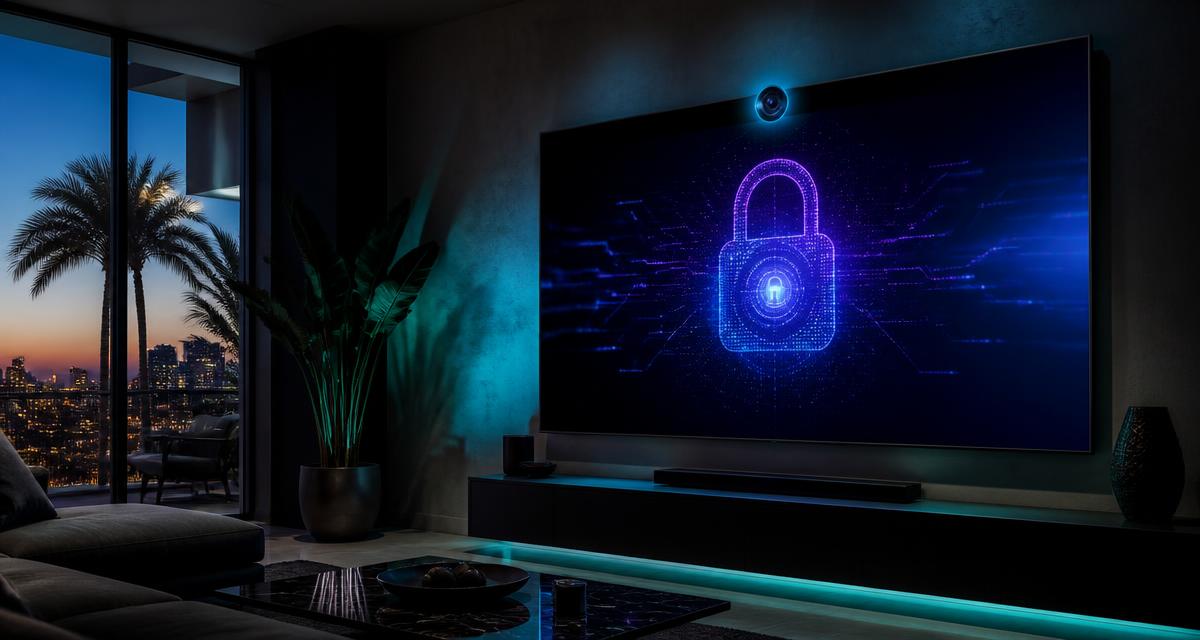
It is one of the most-searched home privacy questions in the United States, and the honest answer has changed over the last decade: no, the large majority of smart TVs sold in 2026 do not have a built-in camera. What almost all of them do have is a microphone, a permanent internet connection, and software whose entire business model is watching what you watch.
So the fear is pointed at the wrong component. The camera is the thing people picture; the data pipe is the thing that actually runs every day. This guide answers the camera question precisely, then shows you how to verify it on your own set, what your TV is genuinely collecting, and the exact hardening sequence our engineers run in South Florida homes — from Brickell condos to Coral Gables houses and short-term rentals on the beach.
Short answer: which smart TVs actually have cameras
Cameras in televisions peaked around 2012–2016, when Samsung and LG shipped flagship sets with pop-up or bezel-mounted cameras for Skype and gesture control. Skype dropped TV support, gesture control flopped, the cameras added cost and generated bad press — so manufacturers removed them.
- Samsung — current QLED, Neo QLED, OLED and Crystal UHD lines: no built-in camera. Some 2012–2016 flagship models had a pop-up camera on the top bezel. Certain commercial/hospitality and specialty models support a separately sold USB camera.
- LG — current OLED evo, QNED and UHD lines: no built-in camera. A handful of 2013–2015 premium models had a slide-up camera.
- Sony — current Bravia lines: no built-in camera. Some Google TV Bravia models support an optional Bravia Cam accessory that clips to the top of the panel; where it is bundled, it is a physical, removable device.
- TCL, Hisense, Vizio, Roku TV, Amazon Fire TV panels: no built-in camera on standard consumer models.
- Android TV / Google TV sets sold in some regions with a bundled clip-on camera for video calling — the camera is visible and detachable.
- Any TV you have connected a USB webcam to for Zoom, Google Meet or a fitness app — that is a camera, and it is on until you unplug it.
Two nuances matter. First, 'smart display' devices next to the TV — a Nest Hub Max, an Echo Show, a streaming stick with a paired camera, a game console camera — absolutely do have cameras and often sit in the same room facing the same couch. Second, hotel, rental and secondhand TVs are unknown quantities: someone may have added hardware. Treat a TV you did not buy as untrusted.
How to check your specific TV in 3 minutes
- 1Look at the hardware. Stand close and inspect the top bezel, the corners and the area under the brand logo. A camera lens is a small dark circle with a visible glass element, usually 3–6 mm. Shine a flashlight at an angle — glass reflects differently from plastic. Check for a pop-up module or a slot along the top edge on older sets.
- 2Find your exact model number. It is on a sticker on the back of the panel, and inside Settings under Support, About or System Information. Brand alone tells you nothing; model year does.
- 3Search the model number plus 'camera' or 'specifications' on the manufacturer's own site. The official spec sheet lists a built-in camera if one exists. Ignore forum guesses and retailer listings.
- 4Open your TV's Settings and look for a Camera, Video Call, Gesture Control or Face Recognition menu. If no such menu exists anywhere in the system settings, your TV has no camera and no camera driver.
- 5Check the USB ports on the back and sides. Anything plugged in that you cannot identify should be removed, especially on a secondhand or rental TV.
- 6Check what else is in the room. Streaming boxes, consoles, smart displays, baby monitors and security cameras are far more likely to be the lens pointed at your living room than the TV itself.
If you find a camera and never use it: cover it with an opaque slide cover (a sticky note works in a pinch), and if it is a detachable accessory, unplug it and put it in a drawer. Physical control beats every software setting.
The real issue: your TV's microphone
Nearly every 2026 smart TV listens in one of two ways. A voice remote contains a microphone that activates when you press the mic button — the lower-risk design, because the hardware button gates it. Far-field microphones built into the panel are always listening for a wake word so you can talk to the TV from across the room, and those are the ones worth thinking about.
In normal operation, these mics stream audio to the cloud only after the wake word. The realistic problems are false wake-word triggers that upload fragments of private conversation, voice recordings retained on manufacturer and assistant servers, and third-party assistant integrations that widen who holds the data. None of this requires a hacker to be involved; it is the product working as designed.
Turn the microphone off
- Samsung: Settings → General & Privacy → Voice (or All Settings → General → Voice Recognition Settings) → turn Voice Recognition off. Newer models expose a Voice Assistant setting where you can select 'Off'.
- LG: Settings → General → AI Service (or Settings → Support → Privacy & Terms) → disable Voice Recognition / AI Recommendation, and decline the voice-data agreements.
- Sony / Google TV: Settings → Privacy → Google Assistant → turn off 'Hands-free' or the built-in mic, and use the physical mic switch on the panel if your model has one.
- Roku TV: Settings → Privacy → Microphone → set channel microphone access to 'Never allow'.
- Fire TV: Settings → Preferences → Privacy Settings, and Alexa → mute the far-field mic (some models have a hardware mute button).
- All brands: if you truly never speak to your TV, use the remote's mic button only, and delete stored voice recordings from the manufacturer's or assistant's privacy dashboard.
ACR: the thing your TV is actually collecting
Automatic Content Recognition is the feature nobody asked for and almost nobody turns off. Your TV samples pixels or audio from the screen many times per second, converts them to fingerprints, and matches them against a reference library in the cloud. The result is a running log of what you watch — broadcast, streaming, DVDs, YouTube, and in many implementations anything on an HDMI input, including a game console or a laptop mirrored to the screen.
That log is joined with your IP address, and through the IP address to the other devices in your household, and then sold into the advertising ecosystem for targeting and measurement. For most families this is a far greater ongoing privacy exposure than a camera they don't have. It is also the single setting with the best privacy-per-minute payoff, because you can switch it off.
Disable ACR and ad tracking by brand
- Samsung: Settings → All Settings → General & Privacy → Terms & Privacy → disable 'Viewing Information Services' (the ACR feature), plus 'Interest-Based Advertising'.
- LG: Settings → All Settings → General → System → Additional Settings → turn off 'Live Plus', and under Support → Privacy & Terms decline 'Advertisement' and personalization agreements.
- Sony / Google TV: Settings → Privacy → Ads → 'Opt out of Ads Personalization' and reset your advertising ID; on Bravia sets also disable 'Samba Interactive TV' if present.
- Vizio: Settings → System → Reset & Admin → Viewing Data → set to Off (this is Vizio's Inscape ACR).
- TCL / Hisense (Roku or Google TV based): Roku — Settings → Privacy → Smart TV Experience → uncheck 'Use info from TV inputs'; Google TV — use the Ads and Usage & Diagnostics privacy settings.
- Every brand: also disable 'Usage & Diagnostics' or 'Send diagnostic data' while you are in the same menu.
One warning: on some sets, declining the full privacy agreement disables smart features entirely. Read what each toggle claims to control, disable the tracking-specific ones first, and re-check after every major firmware update — updates have been known to silently re-enable them.
Can someone actually hack your smart TV and watch you?
Remote takeover of a home TV camera is genuinely rare — mostly because the camera usually isn't there. But TVs do get compromised, and when they do it happens through a small number of predictable paths. This is the same class of problem behind hacked Ring cameras and hijacked home routers.
- Unpatched firmware. A TV that has not updated in two years is running known-vulnerable software with a permanent internet connection. TVs are the most neglected patch surface in the average home.
- Sideloaded and shady apps. Android TV and Fire TV allow app installs from outside the official store. 'Free streaming' APKs are a leading source of TV malware, cryptominers and credential theft.
- Flat home networks. If the TV shares one Wi-Fi network with laptops, phones, NAS drives and cameras, a compromised TV becomes a foothold for scanning and attacking everything else.
- Router misconfiguration. UPnP and manual port forwarding can expose TV and media services directly to the internet where scanners find them within hours.
- Physical and same-network access. Anyone on your Wi-Fi — a former guest, a contractor, a neighbor with your old password — can often push content, install apps or pair with the TV. See how to tell if someone is using your Wi-Fi.
- Malicious casting. Open casting protocols let anyone in range display content on your screen. Annoying rather than dangerous, but it is a reliable signal that your network is too open.
Warning signs worth investigating: apps you never installed, the TV powering on by itself repeatedly, settings reverting, unusual pop-ups or ads inside the TV interface, sluggish performance, or the TV appearing in your router's device list under a name you don't recognize.
The 12-step smart TV hardening checklist
- 1Update the firmware, then enable automatic updates. Settings → Support / System → Software Update.
- 2Cover or remove any camera. Detachable accessory: unplug it. Built-in on an older set: an opaque cover, permanently.
- 3Turn off voice recognition and far-field microphones unless you actively use them.
- 4Disable ACR (Viewing Information Services, Live Plus, Viewing Data, Smart TV Experience) and interest-based ads.
- 5Delete stored voice recordings and reset the advertising ID in the manufacturer's privacy dashboard.
- 6Remove apps you don't use, and never sideload streaming APKs.
- 7Change any default TV or media-server password, and set a PIN on purchases and app installs.
- 8Turn off UPnP on your router, and remove every port-forward rule you cannot explain.
- 9Put the TV and all smart-home devices on a separate IoT or guest Wi-Fi network, isolated from laptops, phones and storage.
- 10Never use the TV's built-in browser for logins, banking or email — its browser is rarely patched.
- 11Sign out of streaming accounts before selling, donating or leaving a TV in a rental, and factory reset it.
- 12Reboot the TV monthly and re-check privacy settings after major updates.
Network segmentation: the one step that matters most
If you do only one thing from this guide beyond updating, do this. Almost every modern router supports a guest or IoT network. Move the TV, streaming sticks, cameras, doorbell, thermostat, robot vacuum, smart plugs and speakers onto it. Keep laptops, phones, work devices and network storage on the main network. Enable client isolation on the IoT network so devices there cannot see each other.
The effect is simple and large: a compromised TV or camera can no longer reach your tax returns, your work laptop or your backup drive. Combine it with WPA3 (or WPA2-AES), a long unique Wi-Fi password, and a changed router admin password — our walkthrough on changing your router password covers that piece, and the broader home security audit for South Florida covers the full sweep.
Why this hits differently in Miami
South Florida has an unusual concentration of the exact conditions that make TV and IoT exposure worse. Short-term rentals turn over dozens of guests a year, each of whom logs into streaming accounts on a shared TV and often gets the main Wi-Fi password. Seasonal residents leave condos empty for months with devices online and unpatched. High-density buildings in Brickell, Edgewater and Sunny Isles put hundreds of Wi-Fi networks within radio range of each other, which makes weak passwords and open casting genuinely exploitable.
Add the region's high-value target profile — executives, attorneys, family offices, crypto holders, professionals working from home — and a living-room device with a microphone and a cloud connection stops being a trivia question. It becomes part of the household attack surface we assess for clients under Miami home security and personal security.
If you rent out a property
- Factory reset every TV between guests and sign out of all streaming accounts.
- Give guests a separate, isolated guest network with a rotating password — never your main Wi-Fi.
- Disable app installs and sideloading on rental TVs, and PIN-protect purchases.
- Document the devices in each unit so an unfamiliar item is obvious.
- Never place any camera-equipped device in a bedroom, bathroom or other private space — beyond the ethics, Florida law is unforgiving here.
What to do if you think your TV is compromised
- 1Disconnect it from Wi-Fi and unplug any Ethernet cable — this stops remote access immediately.
- 2Unplug any attached camera or USB device.
- 3Factory reset the TV (Settings → General/System → Reset), then reconnect and update firmware before signing back in.
- 4Change the passwords of every streaming and shopping account that was signed in on the TV, and sign out of all other devices from those accounts.
- 5Log into your router, review connected devices, change the Wi-Fi and admin passwords, and disable UPnP.
- 6Check whether the same passwords are reused elsewhere — reuse, not the TV, is usually how a small incident spreads.
- 7If financial accounts, cameras or a home office were on the same network, get a professional assessment rather than guessing. Contact Cybrvault for a confidential review.
The bottom line
No, your 2026 smart TV almost certainly does not have a camera watching you — and you can confirm that in three minutes with the model-number check above. Yes, it is listening for a wake word, fingerprinting everything on your screen, and sitting on your network with software you have probably never updated.
Spend twenty minutes on the twelve steps, move the TV to an isolated network, and the living room stops being the weak link in your home. If you'd rather have it done properly — TV, cameras, router, phones and laptops assessed as one system — that's exactly the engagement we run for South Florida households.
"The camera people fear is usually not there. The microphone and the tracking they never think about are always there."— Cybrvault Engineering
Get the 10-step Cyber Hardening Checklist
The exact steps our Miami team uses to lock down people and small businesses — takes under an hour. Instant access, no call required.
// frequently asked
Questions teams ask us
Do smart TVs have cameras in 2026?+
Most do not. Current Samsung, LG, Sony, TCL, Hisense, Vizio, Roku and Fire TV consumer models ship without a built-in camera. Cameras appear on some 2012–2016 flagship models with a pop-up lens, on certain Google TV sets sold with a detachable clip-on camera, and on any TV where a USB webcam has been added. Check your exact model number on the manufacturer's spec page to be certain.
Can someone see you through your smart TV?+
Only if the TV has a camera and that camera is compromised — which is rare. The realistic risks are the microphone, automatic content recognition tracking what you watch, and a compromised TV being used as a foothold on a flat home network. If your TV has no camera hardware and no camera menu in Settings, nobody can watch you through it.
How do I know if my TV has a camera?+
Inspect the top bezel and corners for a small lens under a flashlight, find the model number on the back sticker or in Settings → About, search that model plus 'camera' on the manufacturer's official site, and look for a Camera, Video Call or Gesture Control menu in Settings. No camera menu almost always means no camera. Also check the USB ports for anything plugged in.
Should I cover my smart TV camera?+
Yes, if your TV has one and you don't use it. Use an opaque slide cover or tape. If the camera is a detachable accessory, unplug it and store it away — physical disconnection is more reliable than any software toggle.
Is my smart TV listening to me?+
Almost certainly it can. Voice remotes contain a mic that activates on a button press, and many panels have always-listening far-field mics waiting for a wake word. Audio is typically uploaded only after the wake word, but false triggers happen. Disable voice recognition in Settings and delete stored recordings from the manufacturer's privacy dashboard if you don't use voice control.
What is ACR and should I turn it off?+
Automatic Content Recognition fingerprints what appears on your screen — including HDMI inputs — many times per second and sends that viewing profile to advertisers. It is enabled by default and turning it off does not affect picture quality or streaming apps. Look for 'Viewing Information Services' (Samsung), 'Live Plus' (LG), 'Viewing Data' (Vizio) or 'Use info from TV inputs' (Roku).
Can a smart TV be hacked?+
Yes. The common paths are unpatched firmware, sideloaded streaming apps carrying malware, UPnP or port forwarding exposing the TV to the internet, and anyone with your Wi-Fi password. Symptoms include apps you didn't install, settings reverting, unexpected reboots and in-interface pop-ups. Updating firmware and isolating the TV on an IoT network eliminates most of the risk.
Does Cybrvault secure smart TVs and home networks in Miami?+
Yes. Our residential engagements in Miami-Dade, Broward and Palm Beach cover the whole household: router and Wi-Fi hardening, IoT segmentation for TVs, cameras and smart devices, firmware and patch review, and family device security. Book a confidential consultation at /contact or see /miami/home-security.
// miami, fl services
Cybersecurity built for South Florida
// need help applying this?
Book a free, confidential consultation.
Our engineers can map this to your environment in 30 minutes.
Get secured// keep reading
Related articles
Home Cybersecurity
Ring Camera Hacked? The 2026 Miami Homeowner's Guide to Detecting, Fixing & Preventing a Smart Home Breach
A step-by-step 2026 guide for Miami homeowners who think their Ring, Nest, Blink, Wyze, Arlo or Eufy camera has been hacked — how to confirm it, lock the attacker out in the next 15 minutes, and harden every smart home device on your Wi-Fi so it never happens again.
Home Cybersecurity
How to Set Up a Guest Wi-Fi Network (2026): The Miami Homeowner's Security Guide
Every smart TV, visitor's phone, and contractor's tablet you let onto your main Wi-Fi is a potential doorway into your laptops, cameras, and banking sessions. A guest network takes ten minutes to set up and isolates all of it. Here is exactly how to do it — router by router — plus the settings that actually matter for South Florida homes and home offices.
Home Cybersecurity
How to Protect Your Home Computer From Hackers: The 2026 Complete Prevention Guide
A no-nonsense 2026 guide to preventing hacking on your home computer — the exact settings, tools, and habits our engineers set up for Miami families to stop credential stuffing, ransomware, remote access trojans, phishing, and Wi-Fi intrusions before they ever reach your PC or Mac.
Under attack right now? Our 24/7 line responds immediately.