
Personal Security
How to Tell If Someone Is Remotely Accessing Your Computer in 2026
Signs someone is remotely accessing your computer, how to check Windows 11 and Mac for remote sessions, and exactly what to do in the first 15 minutes.
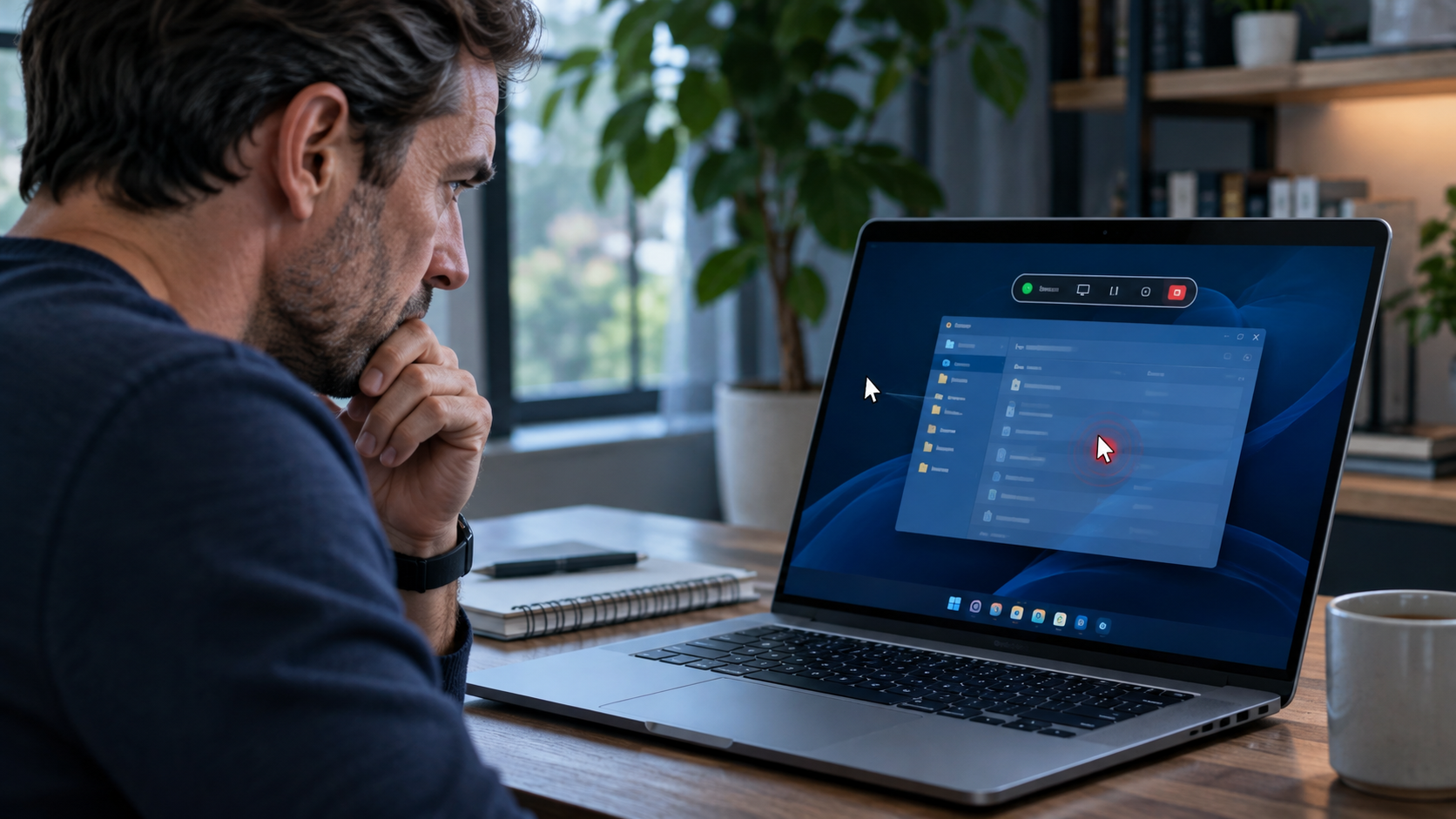
You can tell someone is remotely accessing your computer when you see signs of control you did not start: the mouse moves or clicks on its own, a screen-sharing banner or colored border appears, a remote-support app such as AnyDesk, TeamViewer, ScreenConnect or Quick Assist is running, new programs or accounts show up, or your security settings change without you. To confirm it, check your computer’s remote-access settings, installed apps, active network connections and sign-in logs, which this guide walks through for Windows 11 and macOS.
If you believe someone is connected to your computer right now, do not wait to finish reading. Turn off Wi-Fi or unplug the network cable, leave the computer powered on, and use a different phone or computer to call your bank and change your email password. Then come back to the step-by-step checks below.
Quick Answer: The 10 Most Reliable Signs of Remote Access
No single symptom proves a hack, but these signs are the strongest indicators that another person can see or control your computer:
- 1The cursor moves, clicks or types by itself while you are not touching the mouse or trackpad.
- 2A banner, toolbar or colored border appears saying your screen is being shared or controlled.
- 3You find a remote-access app you do not remember installing, such as AnyDesk, TeamViewer, ScreenConnect (ConnectWise Control), Splashtop, RustDesk, NetSupport, LogMeIn or Chrome Remote Desktop.
- 4Remote Desktop, Screen Sharing, Remote Management or Remote Login is turned on and you did not turn it on.
- 5Passwords stop working, or you receive security alerts about new sign-ins, password resets or added devices.
- 6Your antivirus or Microsoft Defender has been turned off, or its settings were changed.
- 7New user accounts, browser extensions or startup programs appear.
- 8Files are moved, renamed, opened or deleted, or emails you never wrote appear in your Sent folder.
- 9The camera light or the macOS green or orange privacy indicator turns on when you are not using a camera or microphone app.
- 10Money moves out of a bank, crypto or payment account after someone “helped” you on a support call.
Slowness, fan noise or a hot laptop on their own are weak signals. Windows Update, cloud backups, OneDrive or iCloud syncing and antivirus scans cause the same symptoms. Treat them as reasons to check, not as proof.
How Remote Access Actually Happens in 2026
Most people imagine a hacker breaking through a firewall. In reality, the most common path is simpler: someone persuades you to let them in. Criminals impersonate Microsoft, Apple, your bank, your internet provider, Amazon or your company’s help desk, then ask you to install a legitimate remote-support tool or read them a connection code.
Government agencies have warned about this for years. A joint CISA, NSA and MS-ISAC advisory described criminals who used phishing emails to get victims to download legitimate remote-management tools such as ScreenConnect and AnyDesk, then used them in refund scams to steal money from bank accounts. Microsoft Threat Intelligence reported a criminal group that flooded inboxes with spam, then called victims pretending to be IT support and talked them into opening Windows Quick Assist, which led to malware and ransomware.
The money involved is large. The FBI’s Internet Crime Complaint Center reported more than $20.8 billion in losses for 2025, with tech and customer support scams among the three costliest categories at roughly $2.1 billion, according to coverage of the 2025 IC3 report. In the previous year’s report, the FBI noted that Florida was one of the three states that filed the most complaints, and that people over 60 suffered the largest losses.
The four main ways attackers get remote access
- Tricked consent: a pop-up, phone call, text or email convinces you to install a remote tool or approve a session. This is the most common route for individuals.
- Stolen passwords: an attacker signs in to an exposed Remote Desktop service, a remote-support account, or your Microsoft, Google or Apple account, which can be enough to reach synced files and devices.
- Malware: a remote access trojan (RAT) or info-stealer arrives through a cracked program, fake update, malicious attachment or browser extension.
- Someone with physical access: a partner, family member, roommate, former employee or repair technician installs monitoring software while holding the device.
Step 1: Check for an Active Remote Session Right Now
Start with what you can see without opening any tools. Live remote sessions usually leave visible clues.
- Look at the top and edges of your screen for a sharing toolbar, a “you are sharing your screen” message or a colored border. Quick Assist, AnyDesk, TeamViewer and similar tools usually display one.
- Check the system tray at the bottom right on Windows (click the up arrow) or the menu bar at the top right on a Mac for unfamiliar icons.
- On a Mac, look next to the Control Center icon. Apple explains that an orange dot means the microphone is in use, a green dot means a camera is in use and a purple dot means system audio is being recorded; opening Control Center can show which app is using them.
- Keep your hands off the keyboard and mouse for 30 seconds and watch. Real remote control produces purposeful movement: opening windows, typing, clicking menus. Random jitter is more often a failing mouse, a dirty optical sensor or a Bluetooth device connected to the wrong computer.
If you see deliberate movement you are not causing, disconnect from the internet immediately and skip to the section on what to do if someone is in your computer.
Step 2: How to Check for Remote Access on Windows 11
Check whether Remote Desktop is turned on
Open Start > Settings > System > Remote Desktop. If the switch is on and you never use it, turn it off. Microsoft notes that only Pro and higher editions of Windows can accept incoming Remote Desktop connections, while Windows Home cannot, so on a Home edition this page may not offer the option at all (Microsoft Support). Microsoft also warns that enabling Remote Desktop opens a port that other devices can reach and should only be used on trusted networks (Microsoft Learn).
Look for remote-access apps you did not install
Go to Settings > Apps > Installed apps and sort by install date. Look for AnyDesk, TeamViewer, ScreenConnect or ConnectWise Control, Splashtop, RustDesk, UltraViewer, NetSupport, LogMeIn, GoTo Resolve, Atera, Supremo or Chrome Remote Desktop. Scammers often use portable versions that run without installing, so also open your Downloads folder and look for recently downloaded programs with these names.
Inspect running processes and startup apps
Press Ctrl + Shift + Esc to open Task Manager. On the Processes tab, look for remote tools or programs with random names using network activity. Then open the Startup apps page and disable anything you do not recognize. Right-click an unfamiliar item and choose Search online before you delete it, because many legitimate drivers have odd names.
See which programs are connected to the internet
Search for Command Prompt, choose Run as administrator, and type netstat -abno. This lists active network connections along with the program that owns each one. Connections marked ESTABLISHED to a remote-support executable you do not use deserve attention. For a friendlier view, type resmon in the Start menu to open Resource Monitor, then open the Network tab and expand TCP Connections.
Review sign-in history in Event Viewer
Open Event Viewer, go to Windows Logs > Security and choose Filter Current Log. Filter for event ID 4624 (successful sign-in) and 4625 (failed sign-in). Microsoft documents that a successful Remote Desktop sign-in is recorded as the RemoteInteractive logon type, which appears as logon type 10 (Microsoft Learn). Bursts of 4625 failures from unfamiliar addresses suggest someone is guessing passwords against an exposed Remote Desktop service (Microsoft Learn). Advanced users can also check Applications and Services Logs > Microsoft > Windows > TerminalServices-RemoteConnectionManager > Operational for event 1149.
Check accounts, camera and microphone access
- Settings > Accounts > Other users: remove accounts you did not create.
- Settings > Privacy & security > Camera and Microphone: review which apps have access and, where available, the recent activity list.
- Windows Security > Virus & threat protection: confirm real-time protection is on and nothing was added to Exclusions.
- Your browser’s extensions page: remove extensions you do not recognize, especially ones with remote-control, screen-capture or “PDF helper” names.
Step 3: How to Check for Remote Access on a Mac
Check the Sharing settings
Choose Apple menu > System Settings > General > Sharing. Apple explains that when Screen Sharing is on, another computer can view your desktop and open, move and close files, open apps and even restart your Mac (Apple Support). Remote Login allows access through SSH, with an optional setting that gives remote users full disk access (Apple Support). Turn off Screen Sharing, Remote Management, Remote Login, File Sharing and Remote Application Scripting unless you knowingly use them.
Check privacy permissions
Go to System Settings > Privacy & Security and review three lists carefully: Screen & System Audio Recording (apps that can see your screen), Accessibility (apps that can control your Mac) and Full Disk Access. Remote-support tools need these permissions to work. Remove any app you do not recognize or no longer use.
Check login items, profiles and background apps
- System Settings > General > Login Items & Extensions: remove unknown items under Open at Login and Allow in the Background.
- System Settings > General > Device Management (Profiles on older versions): a configuration profile you did not install on a personal Mac is a serious warning sign.
- Applications folder: drag unknown remote tools to the Trash, then empty it.
- Activity Monitor: open the Network tab and sort by Sent Bytes to spot programs sending unusual amounts of data.
For technical users, the Terminal command lsof -i -P | grep ESTABLISHED lists active connections and the processes behind them, and the last command shows recent logins.
Step 4: Check Your Online Accounts, Not Just the Device
In 2026, remote access often happens through your accounts rather than your hardware. Someone who has your Microsoft, Google or Apple sign-in can read synced files, browser passwords, photos and email from anywhere without touching your computer. Review each account’s security page for devices and sessions you do not recognize, sign out of all other sessions, and change the password.
- Microsoft account: review recent sign-in activity and your devices list.
- Google account: run the Security Checkup and review Your devices; also check remotedesktop.google.com/access for Chrome Remote Desktop computers you did not add.
- Apple Account: review the devices list in System Settings and remove anything unfamiliar.
- Email: check forwarding rules, filters and recovery phone numbers, which attackers change to keep access. Our guide on how to know if your email has been hacked covers every setting.
Your home network matters too. If your router uses a default password or has remote management turned on, an intruder can watch traffic from every device. See how to tell if someone is using your Wi-Fi and how to change your router password.
Get the 10-step Cyber Hardening Checklist
The exact steps our Miami team uses to lock down people and small businesses — takes under an hour. Instant access, no call required.
False Alarms: Things That Look Like Remote Access but Usually Aren’t
Before you panic, rule out these common, harmless explanations:
- A work laptop managed by your employer. Companies legitimately use tools such as Microsoft Intune or a remote-management agent. Ask your IT team before removing anything.
- Cursor drift from a low battery, a damaged trackpad, a reflective desk surface or a wireless mouse paired to two computers.
- Windows Update, Time Machine, OneDrive, iCloud or Dropbox syncing in the background, which can cause high network activity at night.
- Browser notification pop-ups that look like system alerts. A website notification saying “your PC is infected” is not proof of infection; it is a common scam lure.
- A family member who uses Screen Time, Family Safety or the same account on another device.
If an explanation fits and nothing else on the checklist looks wrong, you are probably fine. If you are unsure, assume compromise until you confirm otherwise, especially when money, business data or personal safety is involved.
What to Do If Someone Is Remotely Accessing Your Computer
Follow these steps in order. The first 15 minutes matter most, especially if the person had access to online banking.
- 1Disconnect from the internet. Turn off Wi-Fi or unplug the network cable. Leave the computer on so evidence is preserved, and take photos of anything suspicious on the screen.
- 2Call your bank and card issuers using the number on the back of your card. Tell them someone had remote access, ask them to watch for or stop transfers, and change your online banking password from a different device.
- 3From a clean phone or computer, change the passwords for your email, Apple, Google or Microsoft account and banking first, then sign out of all other sessions and turn on multi-factor authentication or passkeys. See passkeys vs. passwords.
- 4Remove the remote tool. Uninstall the remote-access app, delete leftover files in Downloads, and turn off Remote Desktop, Screen Sharing, Remote Management and Remote Login.
- 5Scan for malware. On Windows, run Microsoft Defender’s full scan and the Microsoft Defender Offline scan. On a Mac, install all macOS updates and use a reputable security tool. A scammer who had control may have installed a second tool for later.
- 6Check for changes: new user accounts, browser extensions, email forwarding rules, recovery phone numbers and payment methods.
- 7Report it. Report scams to the FTC at ReportFraud.ftc.gov and to the FBI’s IC3. If your personal information was exposed, use IdentityTheft.gov for a recovery plan.
- 8Decide whether to reset. If you find malware, unknown accounts or repeated access after cleanup, back up only your personal files and reset the device: Windows Reset this PC with Remove everything, or Erase All Content and Settings on a Mac.
- 9Get a professional review before resetting if evidence matters, such as a stalking situation, a business data breach, an insurance claim or a legal case. Resetting first can destroy the evidence you need.
"If a caller asks you to install software, open Quick Assist or read them a code so they can “fix” your computer or protect your bank account, hang up. That request is the scam."— Cybrvault incident response guidance
Remote Access Scams: The Scripts to Recognize
The FTC’s tech support scam guidance is clear that legitimate tech companies will not call, email or text you out of the blue to fix your computer, and that a pop-up with a phone number is a scam. Watch for these scripts:
- The fake virus pop-up: a full-screen warning with a siren sound and a number to call “Microsoft” or “Apple Support.”
- The refund scam: an email about a renewal for antivirus or a subscription you never bought, followed by a call to process your “refund” remotely, where the scammer claims they refunded too much and asks you to send money back.
- The bank fraud department: a caller says your account is under attack and you must move money to a “safe account,” sometimes with an AI-cloned voice. Read our guides on vishing and AI voice cloning scams.
- The help desk call at work: after a flood of spam emails, someone calls or messages on Teams claiming to be IT and asks you to start Quick Assist.
- The government or Amazon order call: an urgent problem that can only be fixed by connecting to your computer.
If You Suspect a Partner or Family Member Is Monitoring You
Remote access is not always a stranger. Monitoring software installed by a current or former partner, often called stalkerware, can capture screens, messages and location. If you are in this situation, think about your safety before removing software, because sudden changes may alert the person watching. Use a device they have never had access to for planning, and consider contacting the National Domestic Violence Hotline at 1-800-799-7233. A professional forensic review can document what is installed before anything is removed.
For Business Owners: Unauthorized Remote Tools on Company Computers
For small businesses, one employee who accepts a fake help desk call can give an attacker a foothold on the whole network. CISA and the NSA recommend auditing which remote-access tools are installed, using application controls to block unapproved ones, and allowing only authorized remote tools over approved connections (CISA AA23-025A). Microsoft recommends blocking or uninstalling Quick Assist and similar tools if your organization does not use them.
- Choose one approved remote-support tool and block the rest.
- Tell employees your IT team will never ask them to install a remote tool through an unexpected call or chat.
- Never expose Remote Desktop directly to the internet; use a VPN with multi-factor authentication.
- Alert on new remote-management software and on Event 4624 logon type 10 from unusual locations.
- Read how hackers target small businesses with fewer than 20 employees for the most common entry points.
How to Prevent Remote Access in the Future
- 1Keep Windows and macOS updated with automatic updates turned on. Microsoft ended free security updates for Windows 10 on October 14, 2025, so unsupported computers should be upgraded or replaced.
- 2Turn off Remote Desktop, Screen Sharing, Remote Management and Remote Login unless you use them.
- 3Uninstall remote-support apps when a legitimate session is finished.
- 4Use a standard user account for daily work and a separate administrator account for installs.
- 5Protect email, Apple, Google and Microsoft accounts with passkeys or app-based multi-factor authentication.
- 6Keep Microsoft Defender or a reputable security tool running, and never add exclusions because someone told you to.
- 7Secure your router with a strong admin password, current firmware and remote management turned off.
- 8Agree on a family rule: no one installs software or reads a code to a caller, ever. Hang up and call back using a known number.
- 9Use a password manager so a single stolen password cannot unlock everything.
- 10Back up important files offline or to a versioned cloud service so a reset is never a disaster.
For a broader routine, see how to protect your home computer from hackers, how to check if your computer is hacked on Windows 11 and 15 ways people get hacked.
Remote Access Check: A 10-Minute Checklist
- No unknown remote tools in installed apps, Downloads or the Applications folder.
- Remote Desktop (Windows) or Screen Sharing, Remote Management and Remote Login (Mac) are off unless used.
- No unknown apps in Screen Recording, Accessibility or Full Disk Access on a Mac.
- No unknown startup apps, login items, browser extensions or configuration profiles.
- No unexplained 4624 logon type 10 events or bursts of 4625 failures on Windows.
- Antivirus is on and has no unexpected exclusions.
- Email, Apple, Google and Microsoft accounts show only your devices and sessions.
- Email has no unknown forwarding rules or recovery details.
- Router admin password changed and remote management off.
- Bank and card alerts turned on for every transfer.
Why This Matters in Miami and South Florida
Remote-access scams work the same everywhere, but South Florida has a large population of retirees, bilingual households, small professional firms and people who manage money across borders, all of which fraudsters target with English and Spanish scripts. If a caller claiming to be your bank, Microsoft or a family member asks for control of your computer, the safest response in Miami, Coral Gables, Brickell or anywhere else is the same: hang up and call back on a number you already trust.
Get Help From Cybrvault Cybersecurity
If you are still unsure whether someone has access to your computer, Cybrvault can check it for you. Our personal cybersecurity service covers device hardening for Windows and Mac computers, account security and family scam-response planning. When evidence matters, our digital investigation team can preserve and document what was installed before cleanup. Ongoing protection is available through 24/7 security monitoring, and households can add home network security. Book a confidential consultation or call (305) 988-9012.
Sources
- CISA, NSA and MS-ISAC: Protecting Against Malicious Use of Remote Monitoring and Management Software (AA23-025A)
- Microsoft Threat Intelligence: Threat actors misusing Quick Assist in social engineering attacks
- FTC: How to Spot, Avoid, and Report Tech Support Scams
- FBI: Annual Internet Crime Report press release (2024 data)
- Help Net Security: Coverage of the FBI IC3 2025 Internet Crime Report
- Microsoft Support: How to use Remote Desktop
- Microsoft Learn: Administrative tools and logon types reference
- Apple Support: Turn Mac screen sharing on or off
- Apple Support: Allow a remote computer to access your Mac
- Apple Support: Use Control Center on Mac
// frequently asked
Questions teams ask us
How can I tell if someone is remotely accessing my computer?+
Look for a cursor moving on its own, a screen-sharing banner or border, remote-access apps you did not install such as AnyDesk, TeamViewer or ScreenConnect, remote features turned on without your knowledge, new accounts or startup programs, and security alerts about sign-ins you did not make. Confirm by checking remote-access settings, installed apps, active connections and sign-in logs.
Can someone access my computer remotely without me knowing?+
Yes. Malware such as a remote access trojan, an exposed Remote Desktop service with a stolen password, or monitoring software installed by someone with physical access can work silently. Legitimate support tools usually show a visible banner, but attackers may run them while you are away or hide them among startup programs.
How do I check for remote access on Windows 11?+
Check Settings > System > Remote Desktop, review Settings > Apps > Installed apps sorted by date, look at Task Manager processes and startup apps, run netstat -abno in an administrator Command Prompt, and filter the Event Viewer Security log for event 4624 with logon type 10 and event 4625 failures.
How do I check if someone is remotely accessing my Mac?+
Open System Settings > General > Sharing and turn off Screen Sharing, Remote Management and Remote Login if you do not use them. Then review Privacy & Security > Screen & System Audio Recording, Accessibility and Full Disk Access, check Login Items & Extensions and Device Management, and watch for the green, orange or purple privacy indicators in the menu bar.
What should I do first if someone is in my computer right now?+
Disconnect from the internet by turning off Wi-Fi or unplugging the cable, but leave the computer on. Then use a different device to call your bank and change your email and banking passwords, sign out of all other sessions and turn on multi-factor authentication or passkeys.
Does turning off the computer stop a remote hacker?+
Disconnecting from the internet ends a live session immediately, which is why it is the first step. Shutting down also stops the session, but it does not remove the remote tool or malware, and it can erase evidence a professional might need. The tool may reconnect at the next startup unless you remove it.
Will a factory reset remove remote access?+
A full reset that erases everything removes remote tools and almost all malware stored on the device. It does not fix compromised accounts, so change your passwords and sign out of all sessions as well. Restore only personal files, not old programs, and get evidence preserved first if you need it for a legal or insurance matter.
Is AnyDesk or TeamViewer a virus?+
No. AnyDesk, TeamViewer, ScreenConnect and Quick Assist are legitimate remote-support tools. Scammers use them because they are trusted and work through firewalls. The danger is who is on the other end; never allow a session for someone who contacted you first.
Can a hacker see me through my webcam?+
Malware with camera access can record video. On most laptops the camera light turns on when the camera is in use, and Macs show a green indicator. Review camera permissions in Windows Privacy & security or macOS Privacy & Security settings and remove apps you do not trust. A physical webcam cover adds peace of mind.
I let a scammer into my computer. Did they steal my money?+
Not necessarily, but act as if they had access to everything visible on screen. Call your bank immediately, check recent transactions, change passwords from another device, remove the remote tool, scan for malware and report it to the FTC at ReportFraud.ftc.gov and the FBI at ic3.gov.
How can Cybrvault help if I think my computer has been accessed?+
Cybrvault provides personal and home cybersecurity in Miami and South Florida, including device checks and hardening for Windows and Mac computers, account security, digital investigation and evidence preservation when needed, and 24/7 monitoring. Book a confidential consultation at cybrvault.com/contact or call (305) 988-9012.
Cybrvault · Personal Security
5.0 on Google
Not sure who's in your computer? Get a definitive answer.
Guessing is stressful—and a missed remote tool can mean drained accounts or a second break-in next week. Cybrvault’s Remote Access Compromise Check puts a Miami-based security engineer on your Windows or Mac computer and accounts to find out what happened, remove what shouldn’t be there and lock it down for good.
Windows & Mac compromise check
Remote tools, sharing settings, startup items, permissions, accounts and suspicious connections reviewed by an engineer.
Account lockdown
Email, Apple, Google and Microsoft sessions reviewed, rogue devices removed and passkeys or MFA set up.
Evidence preserved when it matters
Optional digital investigation documents what was installed before cleanup—for stalking, insurance or legal needs.
Hardening & ongoing watch
Unused remote features turned off, home network secured and optional 24/7 monitoring so it doesn't happen again.
- 01
Confidential call
Tell us what you saw. We triage risk and tell you what to do right now.
- 02
Written scope
You approve exactly what we check—nothing is installed without your consent.
- 03
Clean & harden
Findings, fixes and a plain-English report your family or team can follow.
- For individuals, families, executives and small offices in Miami, Coral Gables and South Florida
- Ideal after a tech-support or “bank fraud” call, a strange pop-up, or a cursor that moved on its own
- We never cold-call you or ask you to install software from a pop-up
Paid work begins with a written proposal and signed agreement, followed by an invoice—not an online checkout. Scope and pricing are confirmed in writing before any work starts. We can’t guarantee recovery of lost funds; call your bank first if money moved. Billing terms.
// miami, fl services
Cybersecurity built for South Florida
// keep reading
Related articles
Personal Security
15 Ways People Get Hacked in 2026 (and How to Stop Each One)
The 15 most common ways people get hacked in 2026, from phishing and SIM swaps to AI voice scams, with warning signs, fixes, and a 10-minute checklist.
Personal Security
Best Cybersecurity Practices for Individuals: 2026 Guide
Follow a practical, prioritized personal cybersecurity checklist for safer accounts, devices, home Wi-Fi, finances, travel, family communications, and recovery.
Personal Security
Personal Cyber Security Services in Miami: 2026 Guide
A practical guide to personal cyber security services in Miami for individuals, families, executives, and professionals—including device, account, privacy, home network, and incident protection.
Under attack right now? Our 24/7 line responds immediately.